
Before You Install Garmin Express on Mac
Installing Garmin Express on macOS requires verifying system compatibility before running the installer package. Garmin requires macOS 13 (Ventura) or newer. Older versions such as Monterey or Big Sur cannot run current releases.
While the installer file is around 45.6 MB, map downloads for navigators and cycling computers require temporary working storage. Ensure your primary Mac volume maintains at least 20 GB of free space.
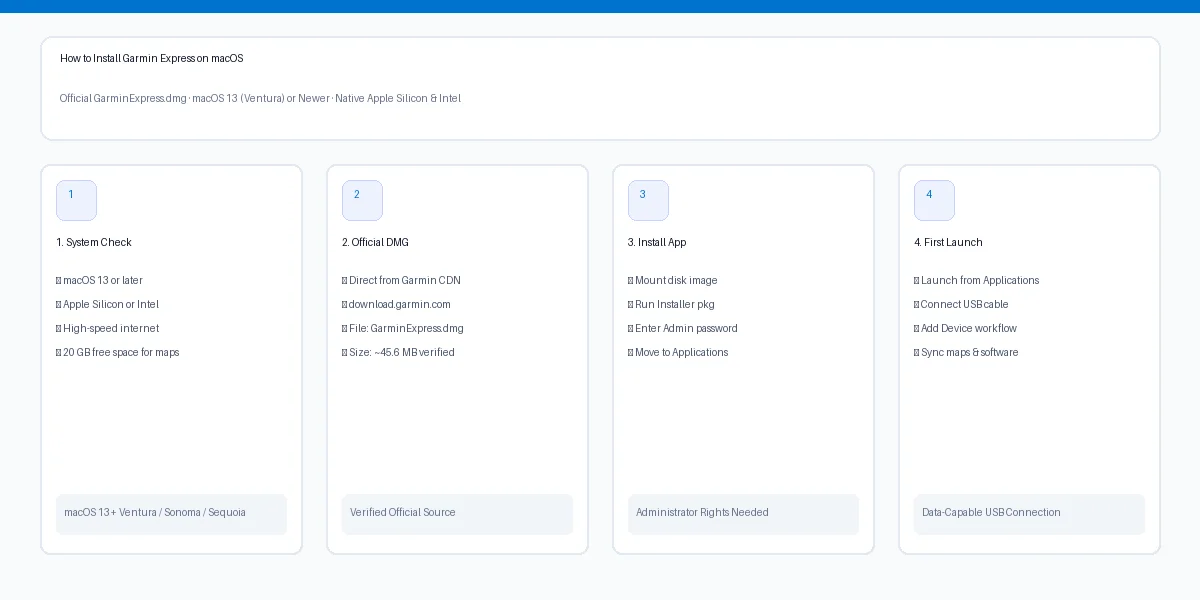
- Confirm your macOS version via Apple Menu > About This Mac (macOS 13.0 or higher required).
- Ensure your Mac user account has Administrator privileges to authorize installer changes.
- Confirm at least 20 GB of free internal disk space for downloading navigation map updates.
- Have a data-capable USB cable ready (USB-A to Mini/Micro-USB or USB-C depending on device).
- Connect your Mac to AC power to prevent system sleep during installation and firmware updates.
Garmin Express for Mac: Official Technical Specifications
Always verify installer technical specifications against official Garmin standards before executing packages. Garmin distributes genuine Mac binaries through its global CDN at download.garmin.com.
| Specification Parameter | Official Standard / Verified Value | User Recommendation & Notes |
|---|---|---|
| Installer File Name | GarminExpress.dmg | Official disk image from Garmin CDN. |
| Download Host | download.garmin.com | Direct official host; avoid third-party sites. |
| Disk Image File Size | Approx. 45.6 MB | Incomplete downloads will fail disk verification. |
| Operating System | macOS 13.0 (Ventura) or newer | Compatible with macOS 14 Sonoma and macOS 15 Sequoia. |
| Architecture | Universal Binary (ARM64 / Intel) | Runs natively on M1/M2/M3/M4 and Intel processors. |
| Display Resolution | 1024 x 768 minimum | Retina high-DPI scaling fully supported. |
| Interface | USB 2.0 / USB 3.0 / USB-C / Thunderbolt | Use genuine data cables or Apple adapters. |
| Storage & RAM | 1 GB RAM; 20 GB free disk space | Disk headroom needed for staging map files. |
How to Install Garmin Express on Mac: Step-by-Step Instructions
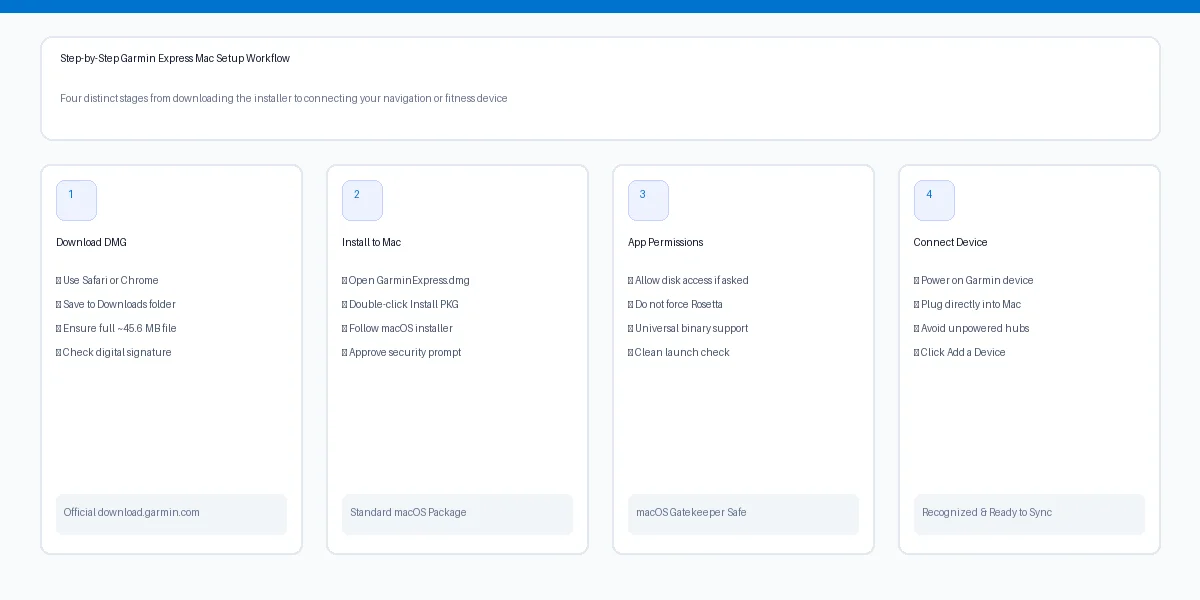
Follow these 4 sequential steps to mount the disk image, install application files, grant macOS permissions, and complete setup.
- 1
Step 1: Download GarminExpress.dmg from Official CDN
Click the Mac download button or navigate to download.garmin.com. Save the DMG file to Downloads and confirm the download completes fully before opening.
- 2
Step 2: Mount Disk Image and Open Installer Package
Double-click GarminExpress.dmg in Downloads. In the mounted disk image window, double-click Install Garmin Express.pkg to start the macOS installer assistant.
- 3
Step 3: Complete Installer Wizard and Authenticate
Click Continue through introductory screens, agree to software terms, and choose Macintosh HD. Enter your Mac admin password or use Touch ID to authorize installation.
- 4
Step 4: Launch Garmin Express and Grant System Permissions
Open Garmin Express from Applications or Spotlight. On first run, grant requested permissions for local network communication and removable storage access.
Garmin Express on Apple Silicon: M1, M2, M3, and M4 Mac Considerations
Garmin Express runs natively on Apple Silicon processors (M1, M2, M3, M4) as a Universal 2 application without requiring Rosetta 2 emulation.
Key recommendations for Apple Silicon Mac setups include:
Native ARM64 Binary Support
Universal binary includes native ARM64 code, executing smoothly on all Apple M-series chips.
View M1 compatibility guideUSB-C & Thunderbolt Adapters
Use an authentic Apple USB-C adapter or powered hub. Passive dongles often cause device dropouts.
Troubleshoot Mac USB connectionsRemovable Volume Permissions
Under System Settings > Privacy & Security > Files and Folders, verify Removable Volumes access is enabled.
Review macOS permissionsLegacy Mac Hardware Fallback
For older Intel Macs restricted to macOS 12 or earlier, consult legacy version guidance.
Check legacy versionsHow to Connect and Add Your First Garmin Device on Mac
Once installed, connect your Garmin GPS, smartwatch, or bike computer to register the device and begin syncing.
- 1
1. Power On Device Prior to Connection
Ensure your Garmin device has at least 50% battery charge and is powered on before attaching USB.
- 2
2. Connect with Data-Capable USB Cable
Plug directly into your Mac using a verified data sync cable rather than a charge-only cord.
- 3
3. Confirm Mass Storage on Device Screen
Confirm the device screen displays a USB battery or computer connection icon indicating data transfer mode.
- 4
4. Select Add a Device in Garmin Express
In Garmin Express, click Add a Device. When your model appears, select Add Device and sign into Garmin Connect.
Troubleshooting Common Garmin Express Mac Installation Problems
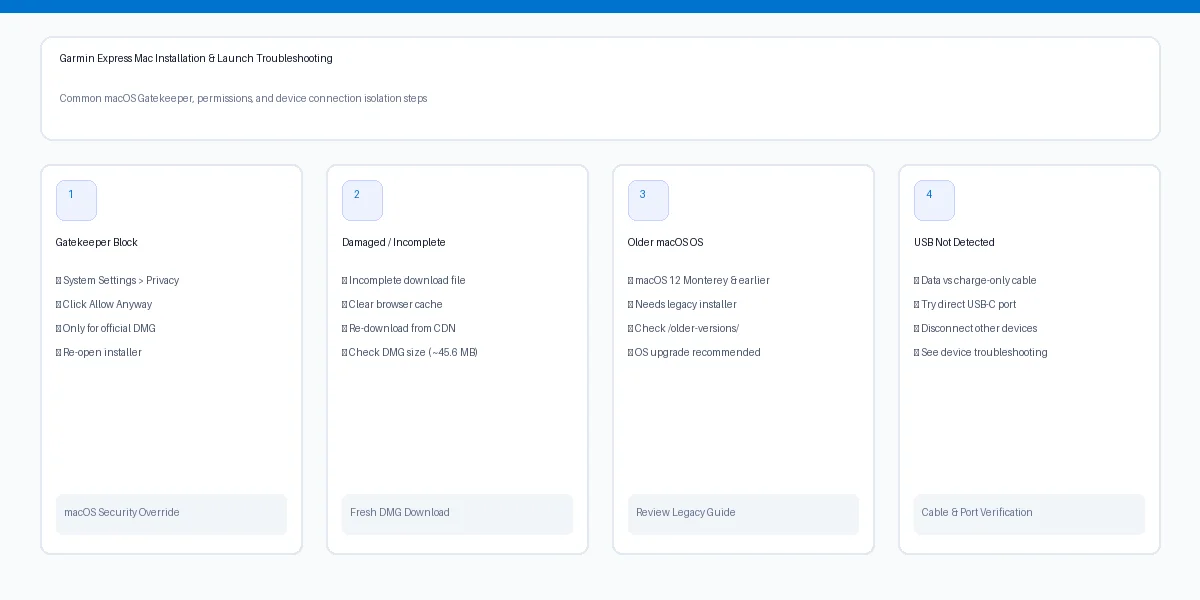
Review targeted solutions below for common macOS Gatekeeper, package, or USB recognition errors during setup.
Gatekeeper: Unidentified Developer Warning
In System Settings > Privacy & Security, locate the blocked installer notice and click Open Anyway.
Gatekeeper setup stepsInstaller Package Failed Error
Clear corrupted cached files in ~/Library/Application Support/Garmin and restart your Mac before reinstalling.
Fix package errorsGarmin Device Not Detected via USB
Confirm you are using a data-sync USB cable. Try another USB-C port and disconnect other USB drives.
Fix USB detectionDMG Verification Freezes
A frozen DMG check indicates an incomplete download. Delete the file and redownload from download.garmin.com.
Download fresh DMGFrequently Asked Questions: Garmin Express Mac Installation
Can I install Garmin Express on macOS Sonoma, Ventura, or Sequoia?
Yes. Garmin officially supports macOS 13 (Ventura), macOS 14 (Sonoma), and macOS 15 (Sequoia). Always download the latest official installer package to ensure compatibility with Apple's annual macOS updates.
Does Garmin Express support Apple Silicon M1, M2, and M3 chips natively?
Yes. Modern Garmin Express releases provide Universal 2 binary support, allowing the application to execute native ARM code on Apple Silicon processors without requiring manual Rosetta 2 emulation.
Why does macOS show a security warning when opening GarminExpress.dmg?
macOS Gatekeeper protects your system against unverified web downloads. When downloading from download.garmin.com, the package is digitally signed by Garmin. If blocked, open System Settings > Privacy & Security and click 'Open Anyway'.
Can I install Garmin Express on an iPad or iPhone?
No. Garmin Express is strictly a desktop application built for macOS and Windows. iOS devices (iPads and iPhones) must use the mobile Garmin Connect app from the Apple App Store instead.
How do I uninstall Garmin Express cleanly from my Mac?
Quit Garmin Express completely. Open Finder > Applications and move Garmin Express to the Trash. For a thorough cleanup, navigate to ~/Library/Application Support/ and delete the Garmin folder, then empty the Trash and reboot your Mac.
Why does Garmin Express state my Mac does not have enough disk space?
While the app itself is around 45.6 MB, map updates (such as City Navigator North America or Europe) can require up to 20 GB of temporary disk space to decompress and build map image files before transferring to the device.