
Garmin Express Mac M1 compatibility: the quick answer
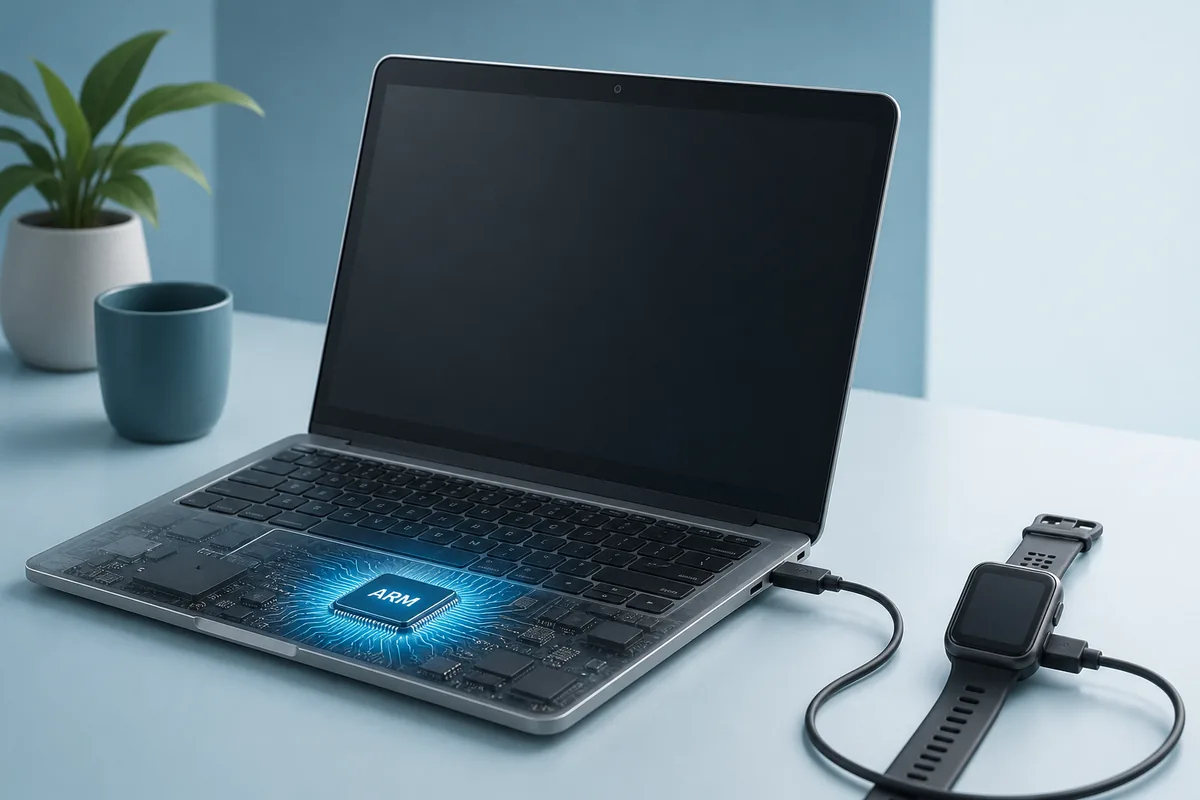
For most users, Garmin Express Mac M1 compatibility is currently practical: install the current DMG from Garmin, allow macOS to install Rosetta if prompted, then connect the device with a data-capable USB cable. M2, M3 and M4 Macs follow the same architecture rule.
The limitation is not processor speed. Express is an Intel application translated through Rosetta. A successful launch today does not guarantee support after a major future macOS upgrade.
| Mac | Current result | Key condition |
|---|---|---|
| M1 / M2 / M3 / M4 | Works through Rosetta | macOS 13+, Rosetta and USB data cable |
| Intel Mac | Runs as Intel software | Supported macOS still required |
| Future macOS | Recheck before upgrading | Rosetta availability may change |
Check whether your Mac uses Apple silicon
Open the Apple menu and choose About This Mac. M1, M2, M3 or M4 means Apple silicon; Intel means an Intel Mac.
Also confirm macOS. Garmin’s Mac page lists macOS 13 or newer. A new chip does not make an older operating system supported.
- 1
Read the chip
Open the Apple menu and choose <strong>About This Mac</strong>. M1, M2, M3 or M4 means Apple silicon; Intel means an Intel Mac.
- 2
Read macOS
Also confirm macOS. Garmin’s <a href="https://www.garmin.com/en-US/software/express/mac/" target="_blank" rel="noopener">Mac page</a> lists macOS 13 or newer. A new chip does not make an older operating system supported.
Why Garmin Express needs Rosetta on an M1 Mac
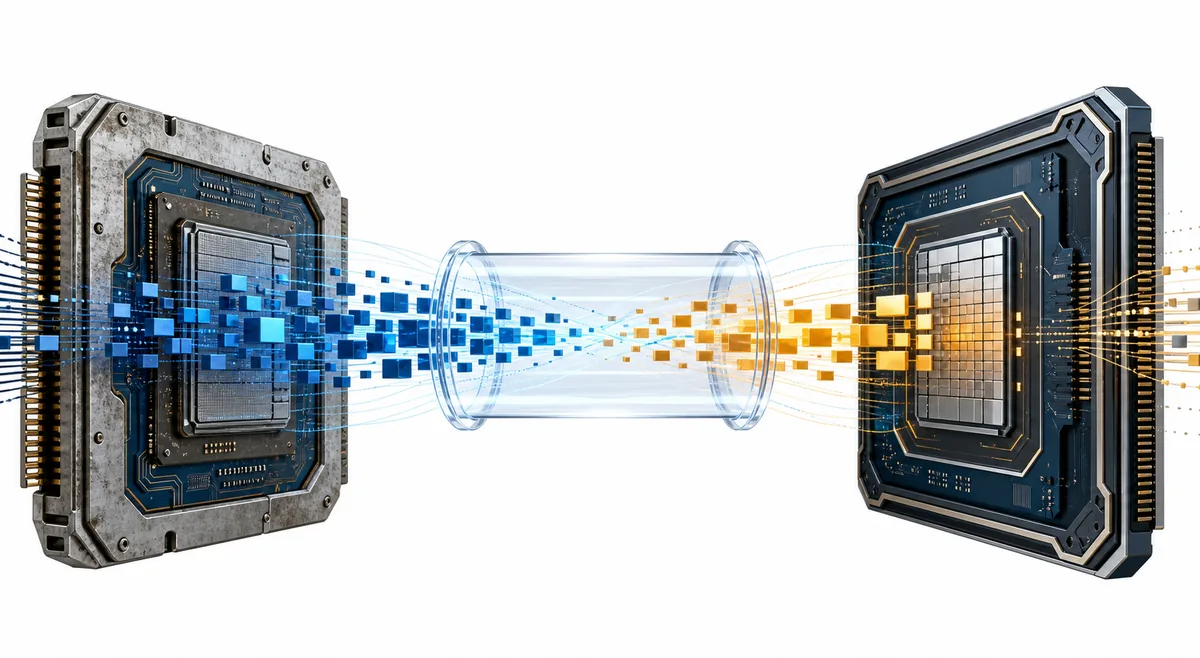
Rosetta translates Intel instructions so an Intel-only application can run on Apple silicon. macOS normally offers the official installation when the first Intel app opens.
Use only Apple’s system prompt. Apple’s Rosetta guidance explains translated app launches. The image below is editorial, not a Garmin screenshot.
Install Garmin Express on an M1 Mac
Download the stable Garmin-hosted GarminExpress.dmg, install it and launch it from Applications.
Accept the official Rosetta prompt if shown, grant only needed permissions, and open Express once before connecting several devices.
- 1
Use Garmin’s DMG
Download the stable Garmin-hosted <a href="https://download.garmin.com/omt/express/GarminExpress.dmg" target="_blank" rel="nofollow noopener">GarminExpress.dmg</a>, install it and launch it from Applications.
- 2
Accept Rosetta
Accept the official Rosetta prompt if shown, grant only needed permissions, and open Express once before connecting several devices.
Fix Garmin Express USB detection on Apple silicon
Express can open while failing to see a watch, cycling computer or navigator. Start with a known data cable, direct Mac port or reputable powered adapter. Charging alone does not prove data transfer.
Restart the Mac and Garmin device, close other Garmin utilities and test one device. Reinstalling Express will not repair a charge-only cable or unstable hub.
- Use a cable known to carry data, not only power.
- Test a direct port or reliable powered adapter.
- Restart the Mac and Garmin device.
- Connect one device and close competing Garmin software.
Plan for Garmin Express after future macOS releases
Apple says general Rosetta availability will narrow after macOS 27. Garmin’s native Apple silicon roadmap—not M1 performance—is therefore the long-term question.
Before a major macOS upgrade, finish urgent map or firmware work, verify current official support and keep a compatible backup computer when device maintenance is critical.
Before a major macOS upgrade, finish urgent map or firmware work, verify current official support and keep a compatible backup computer when device maintenance is critical.
Garmin Express M1 compatibility decision table
An M1 Mac with supported macOS, Rosetta and a stable USB data path is a reasonable current setup. Fix an unsupported OS, blocked Rosetta installation or unreliable cable before a map transfer.
| Check | Ready | Not ready |
|---|---|---|
| macOS | 13 or newer | Older unsupported release |
| Translation | Official Rosetta available | Rosetta blocked or unavailable |
| USB | Data cable and stable port | Charge-only cable or unstable hub |
Garmin Express Mac M1 FAQ
Does Garmin Express work on an M1 Mac?
Yes, on supported macOS, through Rosetta.
Do M2, M3 and M4 Macs use the same setup?
Yes. They are all Apple silicon Macs.
Is Express native Apple silicon software?
No. Garmin currently describes it as Intel-based.
Do I install Rosetta manually?
macOS normally shows Apple’s official prompt.
Why does Express open but not detect my device?
Test a data cable, direct port, device restart and one device at a time.
Should I upgrade macOS immediately?
Check Garmin and Apple compatibility first if you depend on Express.