
Before you install Garmin Express on Windows
The current Windows path is for Windows 10 or newer. Check the Windows version before downloading the file, because a successful download does not prove that the operating system can run the current application. If the computer uses an older Windows release, review the controlled legacy options on the older versions page instead of using an unknown mirror.
Give the installer a stable connection and enough working space for the tasks you plan to do after installation. The EXE is about 127.9 MB, while map work can need much more temporary storage. Keep Windows awake during setup, close duplicate Garmin utilities and use an account that can approve the normal User Account Control prompt.
The illustration below is an editorial explanation of the computer-to-device path, not a Garmin application screenshot. The important decisions remain visible HTML text: supported Windows, a verified EXE, a normal permission prompt and a data-capable USB connection.
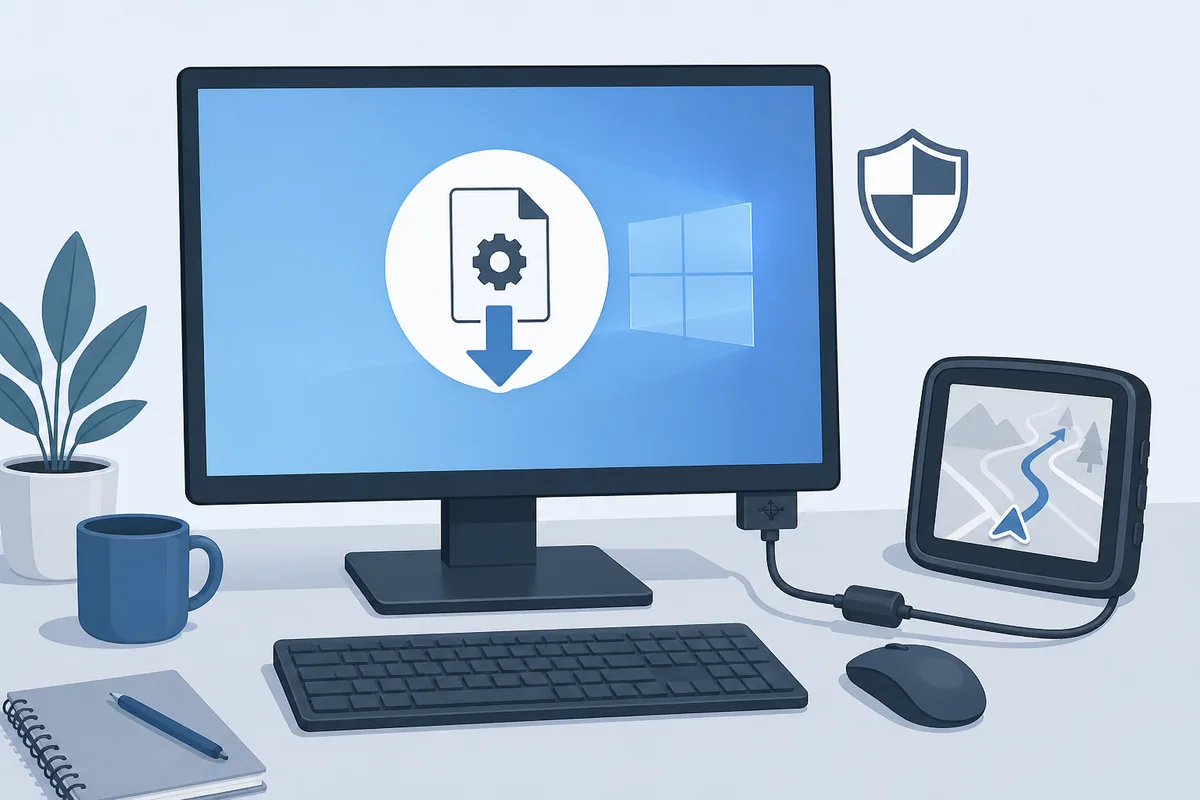
- Confirm Windows 10 or newer in Settings > System > About.
- Sign in with an administrator-capable Windows account or have the administrator available for the prompt.
- Save open work and close older Garmin Express windows before starting a fresh installer.
- Use a stable internet connection and avoid sleep or forced shutdown during setup.
- Prepare a known data-capable USB cable, but leave the Garmin device disconnected until the application is installed.
- If the computer is a Chromebook, Linux-only system or unsupported older Windows release, stop and choose the correct platform path.
Check the official Garmin Express Windows installer
For a clean Garmin Express install on Windows, the final download host should be Garmin's CDN and the file should be named GarminExpress.exe. On August 22, 2026, the stable URL returned HTTP 200 with 134,096,224 bytes and an application/octet-stream response. The CDN's Last-Modified header was July 21, 2026. These are source-verification facts, not a promise that every future request will return the same size.
The current page fact is Windows version 7.29.1. The official Garmin Windows page remains the authority for support changes, installer notices and operating-system requirements. Use this guide to reduce scanning time, not to replace Garmin's product-specific support instructions.
| Fact | Verified value | What it means |
|---|---|---|
| Platform | Windows 10 or newer | Do not use the current path on unsupported older Windows without checking Garmin's legacy guidance. |
| Installer | GarminExpress.exe | Use the Garmin-hosted file; avoid repacks, download managers and patched copies. |
| File size | 134,096,224 bytes (about 127.9 MB) | A much smaller or interrupted file should be downloaded again before troubleshooting. |
| Windows requirement | Microsoft .NET 4.7.2 is listed as included | Do not install an unrelated .NET bundle just because a third-party page lists one. |
| Source check | Garmin CDN · HTTP 200 on 2026-08-22 | The CTA uses a stable direct file URL rather than a countdown or session redirect. |
How to install Garmin Express on Windows
The installation sequence is short, but each step answers a different question. The download step proves that you have the right file. The UAC step proves that Windows is allowing the installer to make the expected change. The first-launch step proves that the desktop app opens before a USB device adds another variable.
Do not click the installer repeatedly while it is working. Multiple setup processes can leave a partial installation, a locked file or a misleading message that Garmin Express could not be installed on this computer.
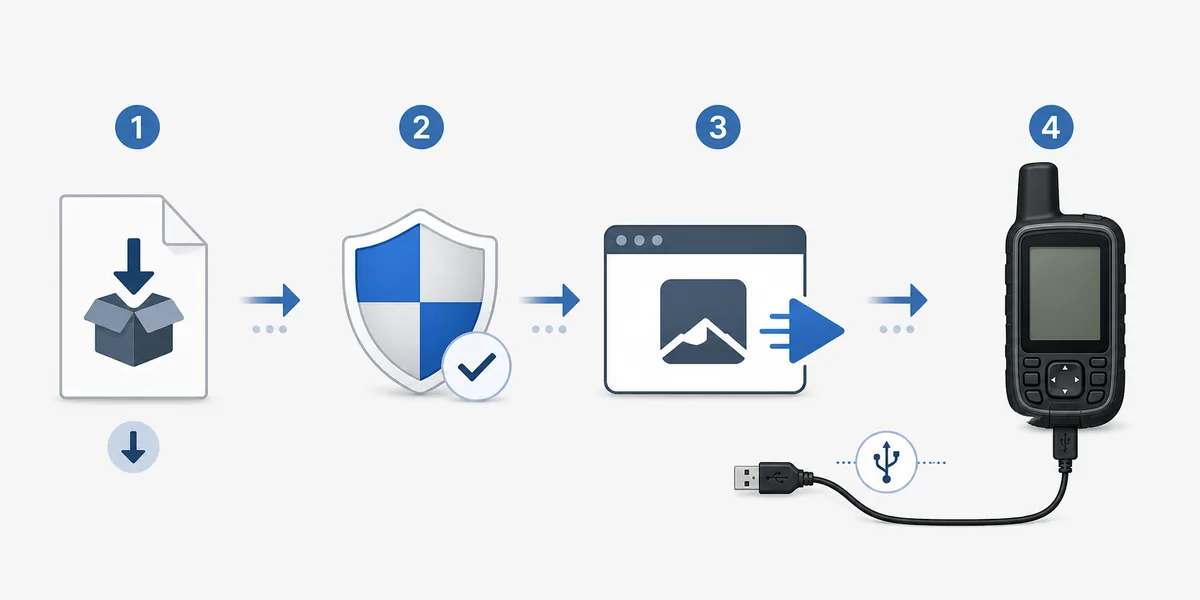
- 1
Download the EXE
Select the official Windows button above and save GarminExpress.exe to Downloads or another known folder. If the browser reports a failed or incomplete download, delete that copy and download it once more from Garmin's URL.
- 2
Check the file before opening it
Confirm that the file is GarminExpress.exe and that its size is plausible. Do not run a file whose name has been changed, whose extension is hidden or whose download source is an unfamiliar mirror.
- 3
Approve the normal Windows prompt
Double-click the EXE and read the User Account Control prompt. Approve it only when the requested application matches the Garmin Express installer you intentionally downloaded; never disable Windows security globally to force a file to run.
- 4
Complete the setup wizard
Accept the normal installation choices, allow the installer to finish its prerequisites and wait for the completion message. Keep the computer awake and do not start a second installer during this step.
- 5
Open Garmin Express from Start
Launch the installed desktop application from the Windows Start menu. If it does not open, restart Windows once and test the application by itself before connecting a device or attempting a map update.
First launch: add a Garmin device after installation
Once Garmin Express opens normally, connect one compatible Garmin device with a known data-capable USB cable. A charging icon proves that the device receives power, but it does not prove that Windows can exchange data. If the device does not appear, use the focused device detection checklist rather than reinstalling the application repeatedly.
The order also makes account and device questions easier to diagnose. First confirm that Express starts. Then connect the device and select Add a Device. Sign in or register only when the next Garmin workflow asks for it; an account is not normally required simply to download the Windows installer.
- Open Garmin Express with no device connected and confirm that the main window loads.
- Wake the device and connect it directly to the computer, not through an unpowered hub.
- Use a data-capable cable and wait for Windows to finish identifying the device.
- Choose Add a Device in Garmin Express and follow the visible device prompts.
- If no device appears, try another direct port and cable before reinstalling Express.
- Do not disconnect during a write, map installation or device software update.
Many cables charge successfully but do not carry data. Test the cable and port separately so a device-recognition problem does not get mislabeled as a Garmin Express installation failure.
If Garmin Express could not be installed on this computer
The phrase “could not be installed” does not identify one single cause. Windows compatibility, an incomplete EXE, a locked file, a pending restart, permissions and security software can all stop setup at different points. Change one variable at a time and keep the current Garmin-hosted installer as the baseline.
The illustration below shows a diagnostic order rather than a real Windows dialog. Start with the computer and file, then inspect the permission step, and only after the application opens move on to USB or map work.
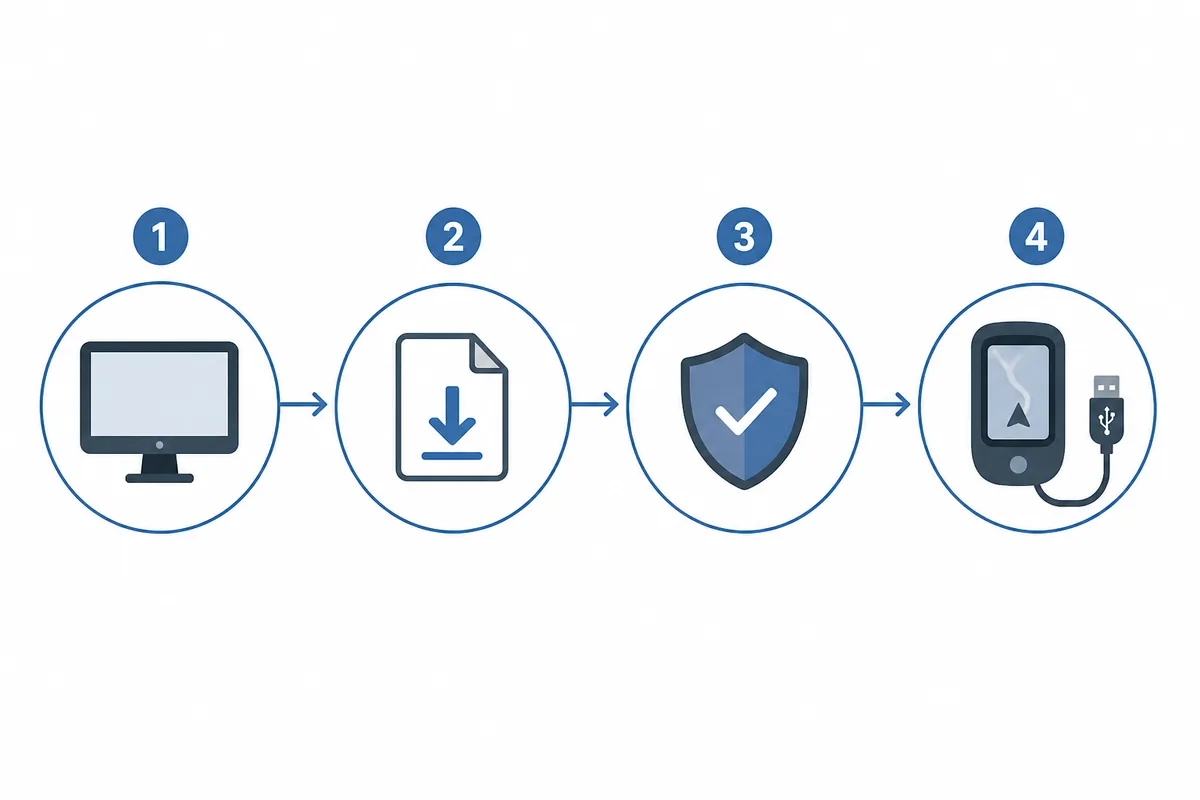
- Confirm that the computer runs Windows 10 or newer and restart Windows if updates are pending.
- Delete the incomplete EXE, close duplicate installers and download a fresh copy from Garmin.
- Run the installer from a normal local folder such as Downloads, not from a temporary archive or network share.
- Approve the expected UAC prompt with an administrator-capable account; do not disable antivirus or Windows security globally.
- If the installer stops after a previous attempt, restart Windows before removing or reinstalling the application through normal settings.
- If the application opens but the device is missing, switch to USB and device-state checks instead of repeating installation.
What to do after Garmin Express is installed
Installation is only the desktop starting point. The next action depends on the device task, account state and available storage. Keep the Windows installer separate from map data: the application may be installed correctly even when a later map operation needs more disk space, a different cable or product-specific entitlement.
Use the most specific next page rather than repeating the complete installation steps. This keeps the Windows install guide focused and gives the follow-up task its own troubleshooting boundary.
Need the file or requirements?
Check the current Windows download page for the verified EXE, source facts and platform requirements.
Open Windows downloadReady for a map update?
Prepare storage, network and device power before starting a map installation.
Update Garmin mapsThe device is missing?
Test the cable, direct USB port, Windows recognition and device state in a controlled order.
Fix device detectionGarmin Express install on Windows FAQ
Can I install Garmin Express on Windows 10?
Yes. This page targets Windows 10 and Windows 11. Confirm the current requirement on Garmin's official Windows page, download GarminExpress.exe from the verified CDN link and approve the normal Windows prompt when the file is the one you expected.
Why could Garmin Express not be installed on this computer in Windows 11?
Check the Windows version, pending restarts, incomplete download, duplicate installer process and UAC permissions. Delete the partial EXE, restart Windows and download a fresh Garmin-hosted copy before trying more invasive changes.
Is Microsoft .NET 4.7.2 a separate installer?
Garmin lists .NET 4.7.2 as included with the current Windows requirement. Avoid third-party bundles and use Garmin Support if Windows reports a specific prerequisite error that the official installer cannot resolve.
Should I connect the Garmin device before installing Express?
Install and open Express first, then connect one compatible device with a known data cable. This makes it clear whether the application itself installed correctly before USB detection becomes part of the diagnosis.
Can Garmin Express run on a Chromebook?
The current installer is for supported Windows and Mac computers, not Chromebook. If the required task is device maintenance through Express, use a supported desktop computer and keep the device connected through a direct data cable.
Should I use an old Garmin Express Windows installer?
Only when the computer's older Windows version requires a Garmin-exposed legacy path. Older builds may lack fixes and current device support. Do not downgrade a supported Windows 10 or Windows 11 installation as a first troubleshooting step.