
What to do when Garmin Express cannot install its update
The exact sentence points to an installation failure, but Garmin Express can display similar wording while it is updating the desktop application, installing device software or preparing a map task. Before retrying, close any unrelated downloads, note the operating system and check whether a Garmin device is actively being written to.
For the desktop app, the safest first path is to record the installed version, restart the computer, confirm supported system requirements, check free space and run the current Garmin-hosted installer once. If the error returns, stop changing several things at the same time and keep the message for support.
| What you see | Likely layer | First safe action |
|---|---|---|
| The Express app update fails | Desktop application | Record the version, restart and check the official installer path |
| The device or map is being written | Device or map update | Keep power and USB connected; use the map or device guide |
| The update button is grey | App state, service or permissions | Close normally, restart and check network and permissions |
| A request error appears | Network, proxy or service | Stabilize the connection and capture the exact message |
| The same failure returns | Application, OS or service | Stop repeating the same retry and contact Garmin with evidence |
Confirm that this is an Express application update error
Garmin Express update is an ambiguous phrase. The desktop application can update itself, then offer device software or maps for a connected product. Those operations use different storage, entitlement, USB and power conditions. If the failure occurs after the device has started a map or firmware write, do not use the desktop-app repair steps as an excuse to pull the cable.
If you need the current installer, use the official Garmin Express software page and the existing Windows download guide or Mac download guide. This site does not host or repackage the EXE or DMG.
Desktop app update
Express itself will not finish installing a newer application build. Use this page's version, storage, permission and retry sequence.
Review the app update guideMap update
A map download or device write is stuck, slow or incomplete. Keep the device powered and use the map workflow instead.
Open map update helpDevice missing
Express cannot see the Garmin product at all. Test the data cable and direct USB path before reinstalling the app.
Check device detectionGeneral startup
The application will not open, freezes or repeatedly crashes. Use the broader troubleshooting order after preserving the error evidence.
Open troubleshootingFix the Garmin Express update error on Windows
On Windows, keep the diagnostic path narrow. Do not run registry cleaners, driver bundles or an old archive installer just because the official update stopped. A current installer can repair application files, but it cannot fix a missing map entitlement, a charging-only cable or an unsupported operating system.
Before starting, close Garmin Express and any other Garmin desktop tools, make sure Windows is connected to power, and note whether the application update was launched from inside Express or from a downloaded EXE. That detail helps distinguish a service prompt from a damaged local installation.
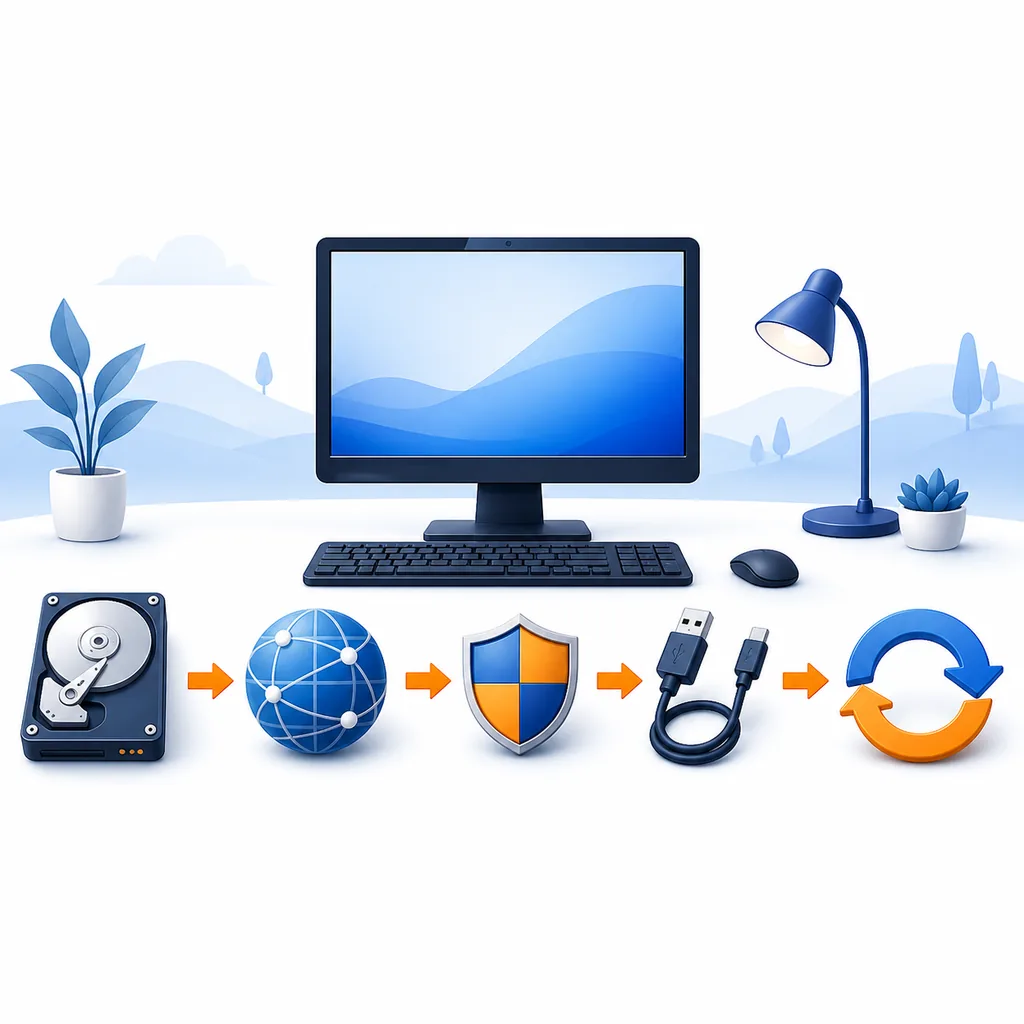
- 1
Record the installed version
Open Express if it still launches and write down the version, Windows edition and exact error. If it will not open, record the last version you know was installed.
- 2
Finish or cancel active work
Do not update the desktop app while a map or device-software write is active. If a device is being written to, keep it connected and wait for a safe stopping point.
- 3
Check system support and space
Confirm Windows 10 or newer, restart pending Windows updates and make enough free disk space for the installer and temporary files. The small EXE size is not the whole workspace requirement.
- 4
Restart and close locked processes
Restart Windows normally, then launch Express once without connecting a device. This releases file locks and separates an app problem from USB detection.
- 5
Run the current official installer
Use the Garmin-hosted EXE from the Windows download guide. Approve the normal User Account Control prompt only when the file came from the expected official host.
- 6
Verify before reconnecting
Open Express, confirm that the version changed or the update prompt is gone, then connect one supported device through a known data-capable cable and test detection.
Fix the Garmin Express update error on a Mac
On a Mac, an update can fail because the current release requires a newer macOS version, the application is still running, the downloaded DMG is incomplete or macOS has paused a permission prompt. Check the operating system before assuming that the Garmin installer is broken.
Quit Express from its application menu rather than only closing the window. If the current release is not compatible with the Mac, use the legacy guidance on the existing older-versions page instead of downloading a random historical package from a third-party directory.
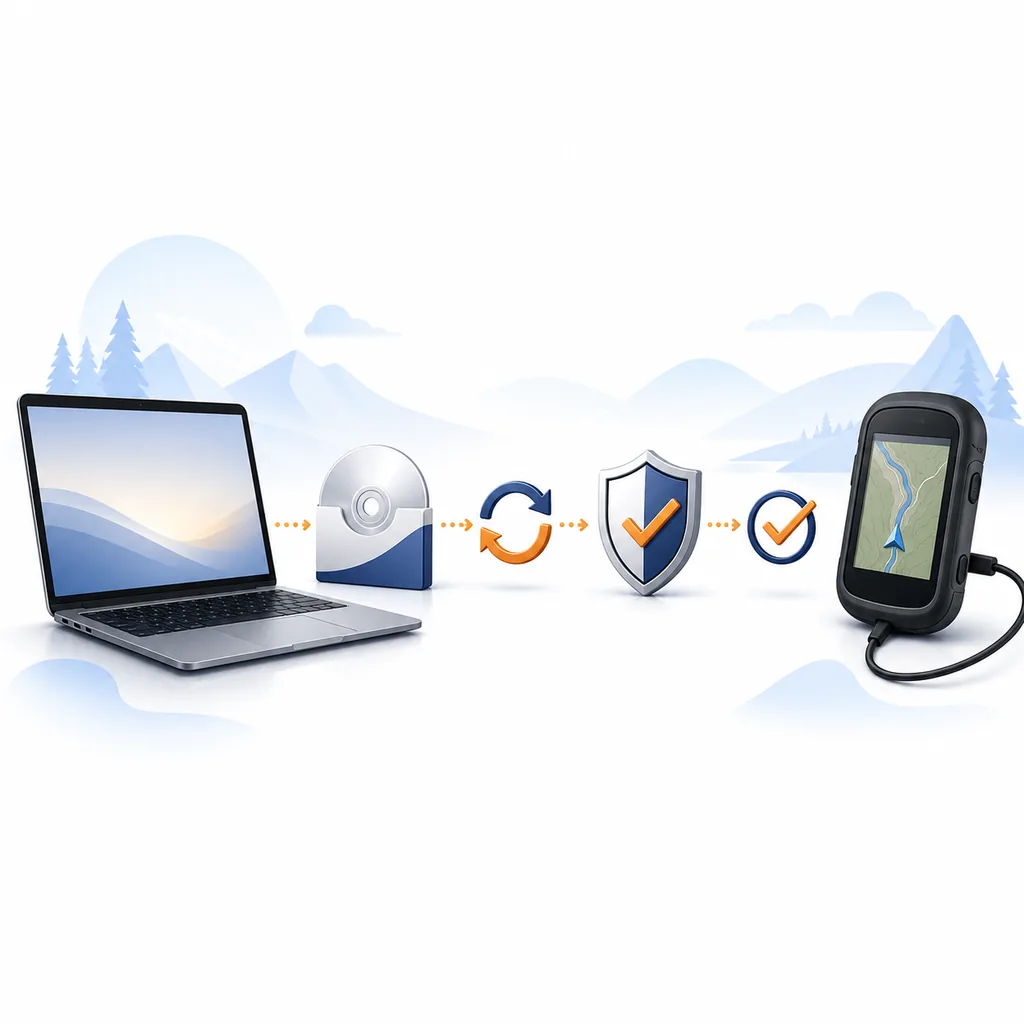
- 1
Check the macOS version
Open About This Mac and compare the release with Garmin's current requirement. A current DMG is not proof that every older Mac can run it.
- 2
Record the message and version
Write down the installed Express version, the Mac model, the exact error and whether the update came from inside Express or from a DMG.
- 3
Quit Express completely
Use the app menu to quit, then wait for the process to close. Do not replace files while the application is still running in the background.
- 4
Download a fresh official DMG
Use the existing Mac download guide and the Garmin-hosted file. If the download is incomplete or renamed unexpectedly, remove that copy and start again from the official page.
- 5
Review normal security prompts
Approve the expected administrator or Gatekeeper prompt for the installer you intentionally opened. Do not disable Mac security for an unrelated archive.
- 6
Launch and test without a device
Open Express from Applications, verify that it starts and shows the expected version, then connect one Garmin device through a reliable data-capable adapter or cable.
Request errors, grey buttons and freezing need different checks
Similarweb questions and related terms show that users describe this problem in several ways: request error, a grey update button, a freeze during installation or a failure to open after the update. These are useful supporting questions, but they should remain inside the same application-error boundary rather than becoming separate thin pages.
Use one controlled change at a time. If a request error disappears after a stable network connection, do not immediately uninstall Express. If the app freezes after an update, record whether the freeze happens before or after the first launch and whether the current installer can start without a device.
| Variant | Check first | Avoid |
|---|---|---|
| Request error | Stable network, proxy/VPN changes, system time and Garmin service availability | Calling it a USB failure without testing the app alone |
| Update button is grey | Busy state, current version, permissions and a normal restart | Clicking repeatedly or installing several packages |
| Freezes while installed | Whether the app opens without a device and whether files are locked | Registry cleaners and random driver tools |
| App will not open | Supported OS, clean restart and current official installer | Downgrading before recording evidence |
| Map update fails | Map entitlement, storage, device power and USB write state | Using this app-install page as a map-file source |
Retry once, then preserve the evidence
A second attempt is useful only when you can compare it with the first. Keep the computer awake, use a stable network, avoid changing several permissions and cables at once, and do not reconnect a device until the desktop app opens normally. This makes the result meaningful instead of creating another unexplained state.
If the exact error returns after the official installer and supported system checks, stop repeating the same sequence. A repeat failure is evidence for Garmin Support, not a reason to keep downloading older builds.
- Keep the computer connected to power and temporarily prevent sleep.
- Write down the exact message, time, platform, Express version and last completed step.
- Use one network path and avoid switching VPN or proxy settings during the retry.
- Run the official current EXE or DMG once, then let the installer finish without launching parallel copies.
- Open Express without a device before testing USB detection or a map task.
- Stop after a repeat failure and keep the evidence for Garmin's model-specific support team.
This guide does not host, modify or redistribute Garmin installers. Use Garmin's official download or support flow when the current application cannot be repaired.
When to contact Garmin Support
Contact Garmin when the same error returns on a supported Windows or Mac system after one controlled retry, when the installer reaches a product-specific entitlement step, or when the device remains in an active write state. Include the exact message instead of summarizing it as “Garmin is broken.”
Use Garmin Support for model-specific compatibility, account, device firmware and service questions. Keep this page's boundary clear: it explains recovery for the desktop application update, while Garmin decides product entitlement and support status.
Send useful evidence
Include the device model, operating system, Express version, exact message, time and whether the failure happened in-app or from the installer.
Use the right guide
Move to device detection, map update or Preparing help when the symptom belongs to a connected-product task.
Choose troubleshootingKeep the official source
Use the current Windows EXE or Mac DMG already verified on the site's platform pages; do not replace it with an unverified mirror.
Review official downloadsGarmin Express update error FAQ
What does “There was an error installing the update” mean in Garmin Express?
It usually means the desktop application update did not finish, but the same wording can be confused with a device or map task. Check which process was active, then follow the Windows or Mac sequence on this page.
Do I need to uninstall Garmin Express before updating it?
No. Use the normal in-app update or the current official installer first. Uninstall only when the application remains damaged, will not open or fails repeatedly after the supported checks.
Can I update Garmin Express without connecting a Garmin device?
Yes. Updating the desktop application without a device connected is usually the cleaner diagnostic path. Test device detection only after Express opens normally.
Why is the Garmin Express update button greyed out?
The application may be busy, already current, unable to reach the update service or blocked by permissions. Record the state, restart normally and use the current official installer if the button stays unavailable.
What if Garmin Express shows a request error?
Check a stable network and whether a proxy or VPN changed, then retry once. If the exact request error returns, keep it with the platform and version details for Garmin Support.
Does updating Garmin Express also update maps?
No. The desktop app, device software and maps are separate update jobs. Use the map guide only after Express is current and the connected device is recognized.
Should I use an older Garmin Express version after this error?
Not as a first response. Older builds can introduce compatibility and security problems. Use a Garmin-hosted legacy installer only when Garmin documents it for the older operating system.