
What to do when Garmin Express is stuck on Preparing
The Preparing message is a transition point: Express may be checking the exact device, creating temporary map files, validating an entitlement or preparing a write. A static screen does not prove that the process has failed. Watch for disk, network or device activity before closing anything.
If the screen remains unchanged after a reasonable wait and there is no visible activity, work from the least disruptive check to the most disruptive one. The goal is to identify the failing layer, not to reset every part of the workflow at once.
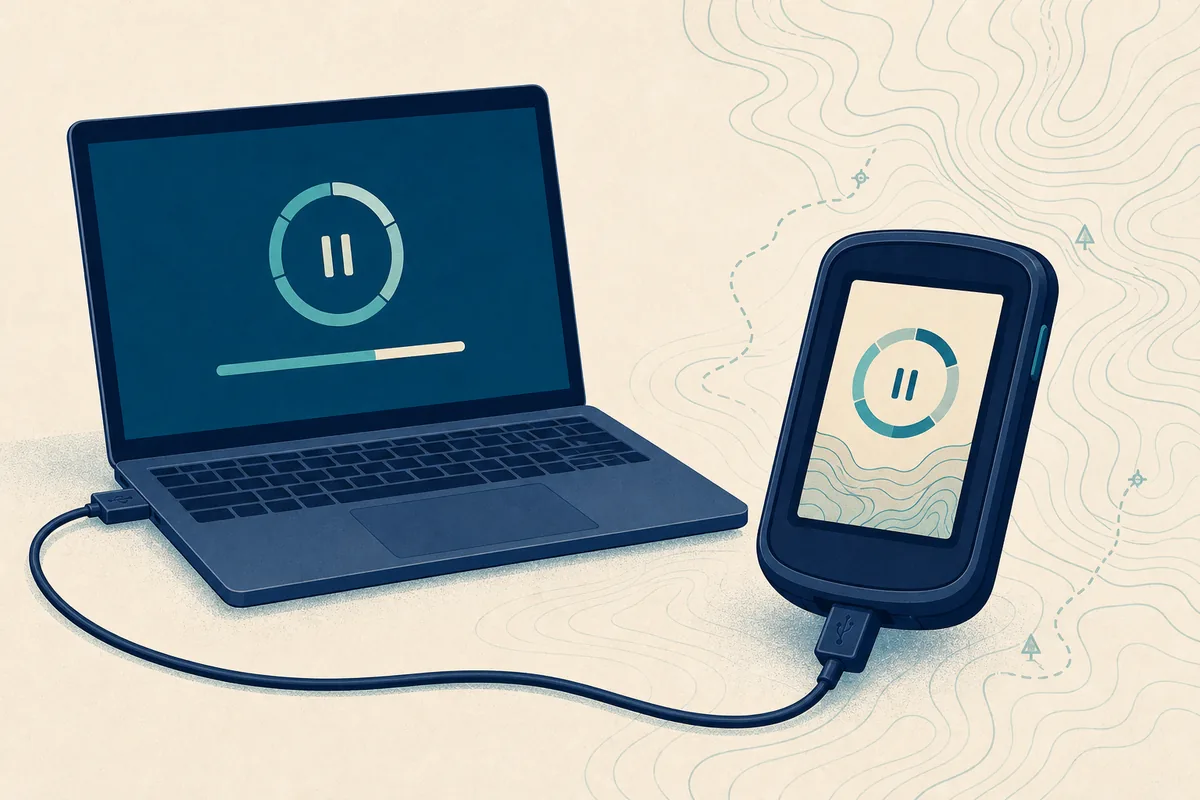
| What you see | Most likely layer | First safe action |
|---|---|---|
| Preparing changes or the computer is active | Normal preparation | Keep the device powered and wait |
| Preparing is unchanged and storage is nearly full | Computer storage | Pause before retrying and make space |
| The device disappears from Express | USB or device state | Use the device-detection checklist |
| An explicit install or download error appears | Application, network or package | Record the exact error and use recovery |
| The same failure returns on a supported second computer | Device, entitlement or Garmin service | Check the exact model with Garmin Support |
What Garmin Express is doing during Preparing
A map update is more than a single download. Express has to identify the product, confirm which map offer belongs to it, prepare files on the computer and then transfer compatible data over the supported connection. The same word can therefore appear while different layers are being checked.
Treat the screen as a status clue, not as permission to bypass Garmin's product rules. A map package found on a third-party site cannot prove that it matches the device model, region, entitlement or storage layout.
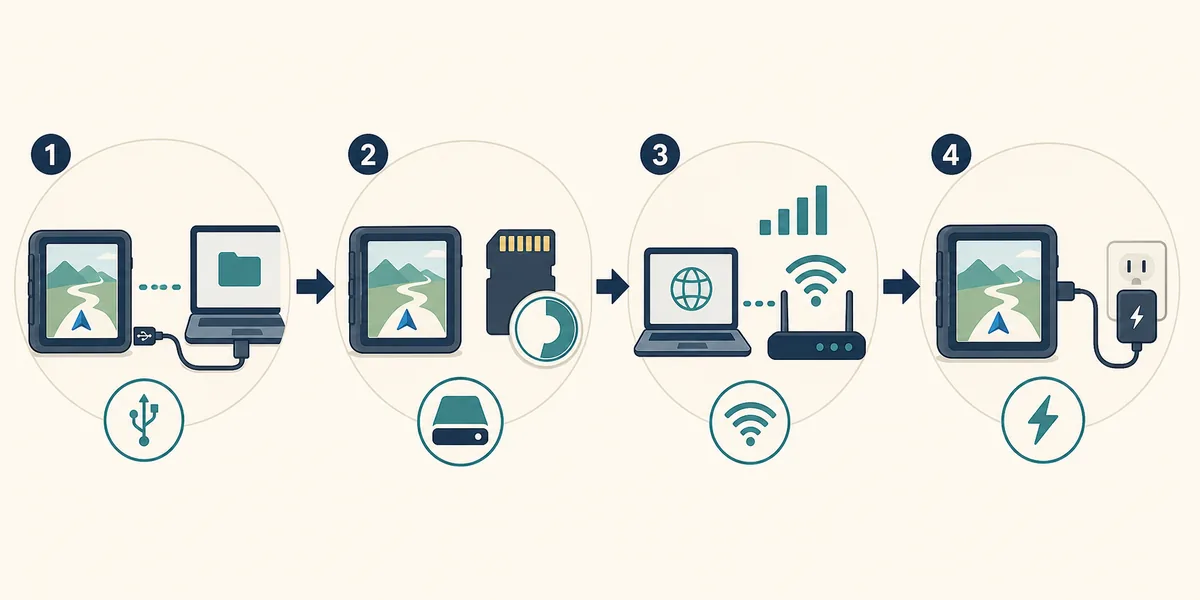
Application
Express must open normally and be compatible with the computer before it can prepare a device update.
Check the app update guideConnection
A cable can provide power without providing reliable data. A direct USB path matters during detection and writing.
Check device detectionMap package
The offered map, region and entitlement belong to the exact connected device. Do not substitute an unrelated file.
Review map updatesComputer
Map preparation can use temporary storage, network bandwidth and uninterrupted power even before the device write begins.
Check requirementsWait or fix? Use the activity test first
Large map packages can appear idle while the computer verifies files or prepares the device. If the computer shows disk or network activity and the Garmin device stays powered, leave the process alone for a while longer. Do not use a short timer as proof of failure.
A safer intervention starts only after the screen, activity and device state have all stopped changing. Note the time, message, device model, operating system and anything that changed immediately before Preparing appeared. Those details make the next attempt easier to compare.
- Keep the computer connected to power and prevent sleep during a long map operation.
- Leave the Garmin device connected and powered while Express may still be writing.
- Check whether the network, disk or device shows real activity before closing Express.
- Record the exact error, percentage, map name and last completed step.
- Change one variable at a time so a cable, storage or entitlement problem is not hidden by a reinstall.
Check USB, storage, network and device state in order
Use this sequence after the activity test suggests that Preparing is genuinely stuck. It is intentionally conservative: the early checks are reversible, while disconnecting or reinstalling can make the evidence harder to interpret.
If the device is not listed at all, jump to the dedicated device-detection guide. If Express offers no map, the problem may be support or entitlement rather than the Preparing screen.
- 1
1. Confirm the exact device
Check the model shown in Express against the physical device. Do not continue with a map offer for a different product family.
- 2
2. Check the USB data path
Use a known data-capable cable and a direct computer port. Avoid a hub while diagnosing and do not confuse a charging icon with a working data connection.
- 3
3. Check computer storage
Free the space requested by Express. Map operations can need up to 20 GB for downloads and temporary files even when the installer itself is much smaller.
- 4
4. Stabilize the network
Use a reliable connection, avoid sleep or VPN changes during the transfer and let the current request finish before starting another one.
- 5
5. Keep the device powered
Charge the Garmin device and keep it awake or connected according to its normal update instructions. Do not remove power during a possible write.
- 6
6. Close competing software
Quit other Garmin desktop tools and heavy download or backup jobs that may compete for the device, USB path or storage.
- 7
7. Restart only after recording evidence
If there is no activity and the status is unchanged, close Express through the normal operating-system path, restart the computer and reconnect one device.
- 8
8. Retry once and compare
Run the same update again after the checks. If the same Preparing failure returns, stop repeating it and move to the recovery or support path below.
Windows and Mac checks are similar, but not identical
The main diagnosis is the same on Windows and Mac, but the operating system controls permissions, sleep behavior, USB adapters and application updates differently. Use the current supported Express build for the platform before treating a platform-specific prompt as a map problem.
The current official download files are not the map itself. Updating or repairing Express may fix application files, but it cannot create a map entitlement or make an unsupported device compatible.
| Platform | Check during Preparing | Do not assume |
|---|---|---|
| Windows | USB driver recognition, direct port, pending restart, free storage and sleep settings | An installer success proves that the device or map task is fixed |
| Mac | USB-C data adapter, macOS permissions, current DMG compatibility and sleep settings | A charging connection is a data connection |
| Both | Exact model, map offer, account/entitlement, network and stable power | A newer map file from another site matches the device |
How to recover after Preparing stops responding
Recovery should preserve useful evidence and reduce the chance of interrupting a device write. If the screen is truly frozen, the computer shows no relevant activity and the device has not changed state, use the normal close and restart path rather than forcing a cable removal first.
After one clean retry, a repeat failure is a diagnostic result. It is usually more useful to contact Garmin with the model, operating system, Express version, map name and exact message than to keep installing random drivers or old packages.
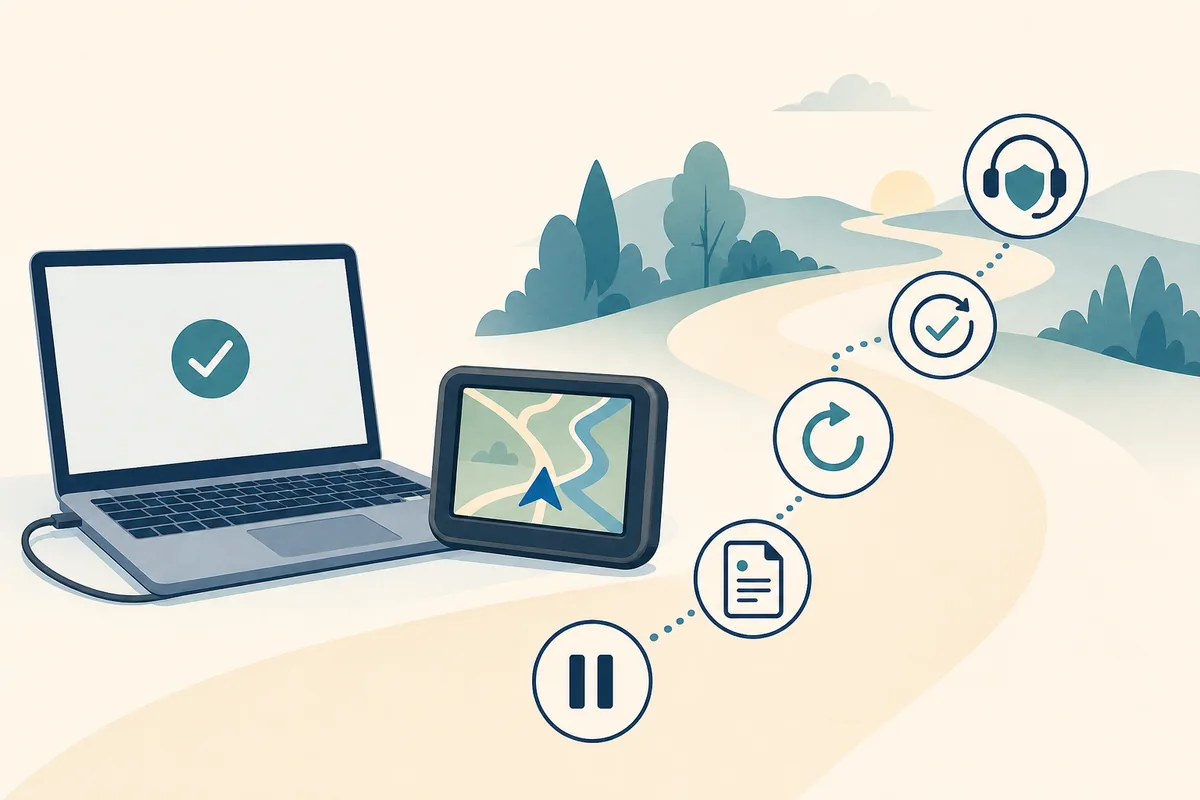
- 1
Record the state
Write down the device model, operating system, Express version, map name, percentage and exact message.
- 2
Wait for a safe stopping point
If the device or disk is active, allow the current operation to finish. Do not pull the cable to make the screen change.
- 3
Close normally
When there is no activity, close Express with the normal menu or window controls and restart the computer if the operating system requests it.
- 4
Reconnect one device
Use a direct data cable, stable power and one supported device. Do not add a hub or several Garmin products during the diagnostic retry.
- 5
Retry once
Start the same eligible map update and compare the result with the recorded first attempt. Stop if the identical failure returns.
- 6
Escalate with evidence
Use Garmin Support for model-specific entitlement, map or device-state questions instead of searching for an unofficial map package.
When to use another guide or Garmin Support
A Preparing message can be caused by a map workflow, but not every update symptom belongs on this page. Use the closest existing checklist when the symptom points to a different layer. For model-specific map entitlement, device firmware or a repeated official error, use Garmin Support and keep the evidence from your failed attempt.
This independent guide does not host, modify or redistribute Garmin installers, maps or firmware. The official download pages remain the correct source for Windows and Mac application files.
General map workflow
Use the complete preparation, entitlement, installation and verification sequence for a supported map update.
Open the map guideDevice missing
Use the cable, port, operating-system and device-state checks when Express cannot see the product.
Open device detectionApp update failure
Separate an Express installation error from a map transfer problem before repairing the desktop application.
Open app update helpOfficial model support
Ask Garmin about a repeated entitlement, device firmware or product-specific update failure.
Open Garmin SupportGarmin Express Preparing FAQ
Why is Garmin Express stuck on Preparing?
Preparing can include device identification, entitlement checks, file preparation and the start of a device write. Check for real disk, network or device activity before deciding that the app has failed.
Can I unplug my Garmin while Express is preparing?
Do not unplug it while Express may be writing files. If the status has stopped with no activity, record the evidence and use the normal close, restart and single-device retry sequence.
How much free space does a Garmin map update need?
Allow up to 20 GB on the computer for map files and temporary data, then follow the exact storage warning shown for the model and map offer. The small installer size is not the same as the space needed for a map operation.
Can I update Garmin maps without Garmin Express?
Only use a method Garmin provides for the exact device. A loose map download from a mirror cannot prove model compatibility, region, entitlement or safe transfer.
What if Garmin Express cannot see the device?
Use a known data-capable cable, a direct port, stable power and a restart. Then open the device-detection guide before repeating the map update.
Should I reinstall Garmin Express when Preparing is stuck?
Not as the first step. Reinstalling does not fix low storage, a charging-only cable, a missing entitlement or a device write that was interrupted. Separate those causes first.