
The short answer: GPX import and Garmin Express are not the same job
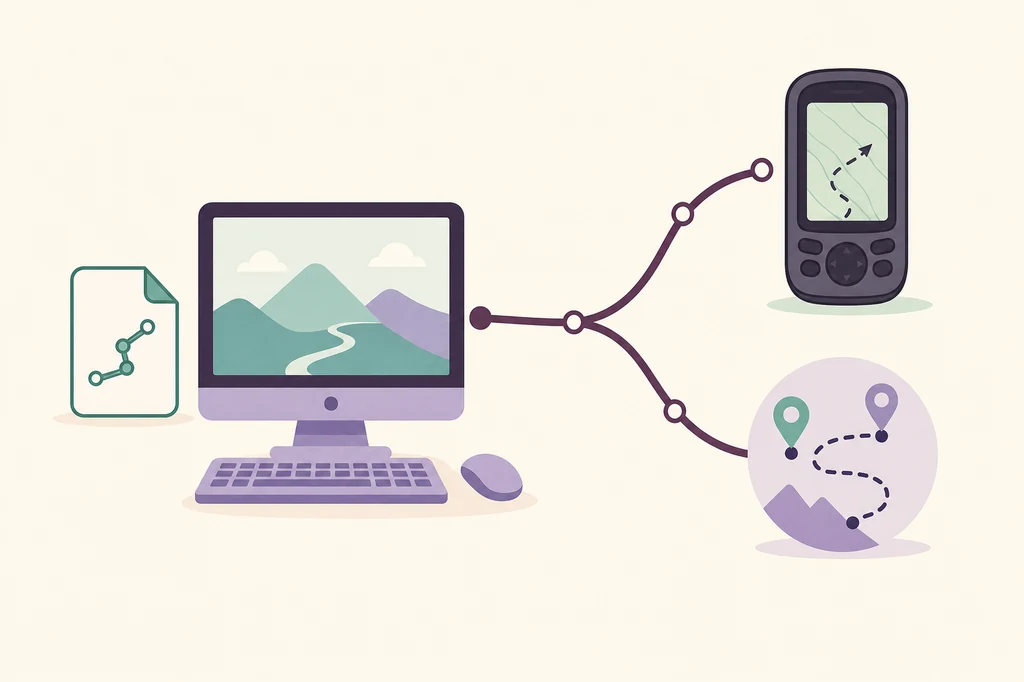
The phrase how to import GPX files into Garmin via Garmin Express combines two different tasks. A GPX file normally contains a route, track or waypoint. Garmin Express is the desktop application used for compatible maps, device software, registration and other computer-based maintenance. It is not a universal GPX editor or route library.
For many Garmin watches and cycling devices, import the file into the Garmin service that supports courses, such as Garmin Connect or Garmin Explore, then use the documented send or sync path. For older or specialized products, BaseCamp or a model-specific folder workflow may be the correct answer. Read the exact device instructions before assuming that a visible USB connection means Express should open the GPX file.
| What you want to do | Likely tool or path | Do not assume |
|---|---|---|
| Import a GPX route from a computer | Garmin Connect, Garmin Explore, BaseCamp or the model's documented import path | That Express will browse and edit every GPX file |
| Send a saved course to a compatible device | Use the course service's send or sync action, then follow the device prompt | That a map update is required |
| Update maps offered for a device | Garmin Express map workflow on a supported computer | That a GPX file is a map package |
| Device is not visible over USB | Known data cable, direct port and the device-detection checklist | That a missing GPX file proves the cable is bad |
| Route works on one model but not another | Model-specific support and route-format limits | That every Garmin device accepts the same course type |
Choose the correct Garmin tool before moving the file
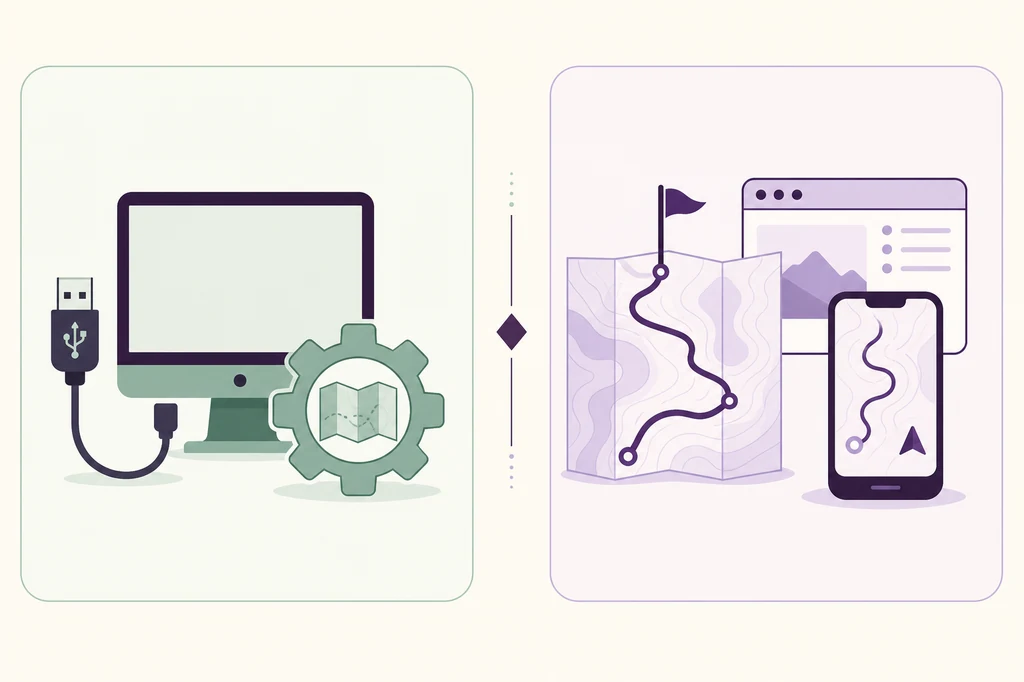
The safest answer is determined by the device and the next action, not by the word Garmin in the product name. If the task is a course or route, begin with the app or service that can import GPX. If the task is a map, device-software update or registration on a computer, Express may be the correct desktop tool.
Garmin's official Support site and Garmin Connect are the safer places to confirm the current model workflow. Do not use an unverified route converter or a download page that promises a universal Garmin GPX installer.
Garmin Connect
A common route for supported watches and cycling devices: import or save a course, review it, then send or sync it to the device.
Compare Express and ConnectGarmin Explore
A route and outdoor-data option for compatible products. Use the model documentation to confirm whether Explore is the right service.
Open Garmin ExploreBaseCamp or device storage
Some older or specialized devices use a computer application or a documented folder transfer instead of a modern course-sync flow.
Review troubleshootingGarmin Express
Use it when Garmin assigns the job to desktop maintenance, maps, device software, registration or another supported computer workflow.
Review Express setupHow to import a GPX route without forcing it through Express
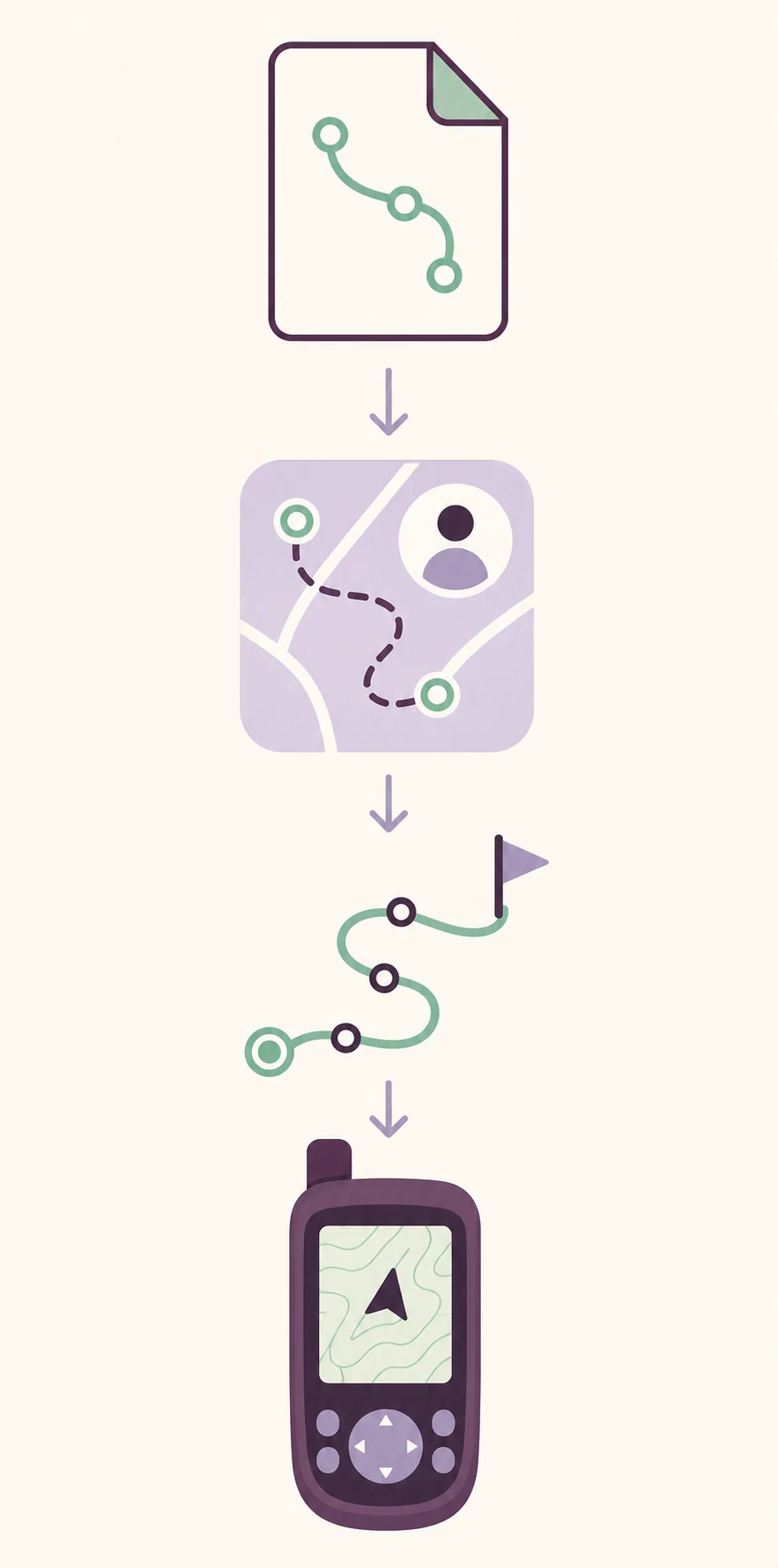
Import the file into the route service that supports the product. The names of buttons vary by account and device, but the useful sequence is stable: identify the model, choose the supported service, import one file, inspect the result and only then send it to the device.
If you need Garmin Express for another task, install it from the site's existing Windows page or Mac page. That installation does not turn Express into a general GPX editor.
- 1
Confirm the exact device model
Write down the model, operating system and the job you want to complete. A watch, cycling computer, automotive navigator and handheld can use different route services and file limits.
- 2
Open the supported route service
Use Garmin Connect, Garmin Explore, BaseCamp or the product's documented transfer utility. Do not start by opening Express just because the file name contains Garmin.
- 3
Import one GPX file
Choose the service's import or upload action, select the GPX file and wait for the route to finish processing. Keep the original file unchanged so you can compare a failed import with a clean copy.
- 4
Check the course before sending
Inspect the route line, start and finish, turn information, distance and any unsupported points. Fix a malformed or empty course in the route service instead of repeatedly reinstalling Express.
- 5
Send or sync through the documented path
Use the service's send-to-device, sync or export action. Keep the device powered and connected as instructed, and wait for the device or app to confirm completion before disconnecting.
Check the course, connection and destination separately
A GPX import can succeed while the device transfer fails later. Treat those as separate checkpoints. First confirm that the route exists in the correct account or application. Then confirm that the device supports courses or tracks and that the chosen send method matches the model.
When a computer connection is required, use a direct data-capable USB cable, avoid hubs during the first test and keep the device awake. If the computer cannot see the device at all, stop debugging the GPX file and use the site's device-detection guide.
- The GPX file opens as a route, track or waypoint in the selected Garmin service.
- The route has a meaningful start, finish and shape rather than an empty or zero-length track.
- The exact Garmin model supports the course, track or waypoint type you are sending.
- The Garmin account, mobile app or desktop service is signed in only through an official Garmin domain.
- The device has enough storage and battery, and any required Bluetooth, Wi-Fi or USB connection is stable.
- The transfer reports completion before you disconnect or start a map or firmware update.
Do not rename a GPX file to make it look like a map package, and do not download loose map files from a mirror. Use the map offer shown for the exact device inside the supported Garmin workflow.
Common GPX and Garmin Express problems
When a GPX file does not appear, changing the application is usually more useful than reinstalling everything. Start by identifying which step failed: import, route processing, account sync, device detection or device storage. That keeps the diagnosis narrow and protects a working desktop setup.
If the problem is really a map or device-software update, move to the existing map update guide or general troubleshooting guide. If it is a course-file problem, keep the evidence in the route service and the device model instructions.
| Symptom | Likely layer | First safe check |
|---|---|---|
| The import control is missing | Wrong app or account workflow | Open the supported Connect, Explore or BaseCamp path for the model |
| The GPX imports but the route is empty | Malformed file or unsupported route data | Open one clean GPX copy and inspect its start, finish and points |
| The course exists but cannot be sent | Device support, account or service limitation | Check the exact model instructions and supported course type |
| The device does not appear | USB, Bluetooth, Wi-Fi or device state | Use a stable connection and the device-detection checklist |
| Express shows a map update prompt | Map workflow, not GPX import | Use the exact device map offer and keep GPX troubleshooting separate |
| The route is duplicated or old | Account sync or device library state | Remove only the duplicate entry documented by the service or device |
When Garmin Express is still useful
Not importing GPX in Express does not make Express unnecessary. The desktop application can still be the correct place for compatible map updates, device software, registration and other tasks that Garmin assigns to a computer. The important distinction is that those operations do not convert a GPX route into a universal map or course package.
Use the existing site guides according to the next physical action. A route service handles route data; Express handles the desktop tasks it exposes for the connected product. If you are unsure, check the official model instructions before installing a second application or downloading an old package.
Map update
Use Express when it shows an eligible map offer for the exact connected device and region.
Open map update guideDevice software
Follow the model-specific software or firmware path offered by Garmin; do not treat it as a GPX import.
Review update boundariesUSB detection
If the desktop app cannot see the product, test the data path before changing the GPX file.
Check device detectionMobile route work
Use Garmin Connect or another supported mobile service when the product instructions assign the job to a phone.
Review the iOS pathFAQ about GPX files and Garmin Express
Can Garmin Express import GPX files?
Usually not as a general GPX editor. Express is desktop maintenance software; import the file into the supported Garmin route service or model-specific utility first.
How do I import GPX files into Garmin via Garmin Express?
Use the documented route service to import and save the GPX as a course or route, then send or sync it using the supported device path. Use Express only for the computer task Garmin assigns to it.
Can Garmin Express send a course to a Garmin watch?
Some models use Connect or Explore, and others have their own instructions. Check the exact model before assuming that Express should display a course-transfer button.
Why does my GPX file not appear in Garmin Express?
It may be in the wrong application, unsupported by the device or waiting for a separate send or sync step. Check the route service and model guide before reinstalling Express.
Is a GPX file the same as a Garmin map update?
No. GPX is route data. A map update changes map data offered to an eligible device, and Express should handle it through its own map workflow.
Can I import a GPX file from an iPhone?
Use the official Garmin mobile route workflow when it supports the device. Garmin Express is desktop software and does not have an iPhone installer.
What if the device is not detected after I import the route?
Separate route processing from connection diagnosis. Test a known data-capable cable and direct port, then use the focused device-detection guide.