
Confirm that your Garmin is a Nuvi 2595 before updating
The words “Nuvi 2595 update” can describe a map update, a device-software update, a registration task or a request for an old installer. Express makes the final decision only after it reads the connected unit. Look at the model label or the device information screen and write down the current map name, software version and any regional suffix before changing anything.
A Nuvi 2595 is an older navigation device, so availability can differ between units. A model name alone does not prove that a new map is offered, that an update is free or that every modern map package will fit. The safest path is to let Garmin Express display the services attached to the registered device and then follow that specific offer.
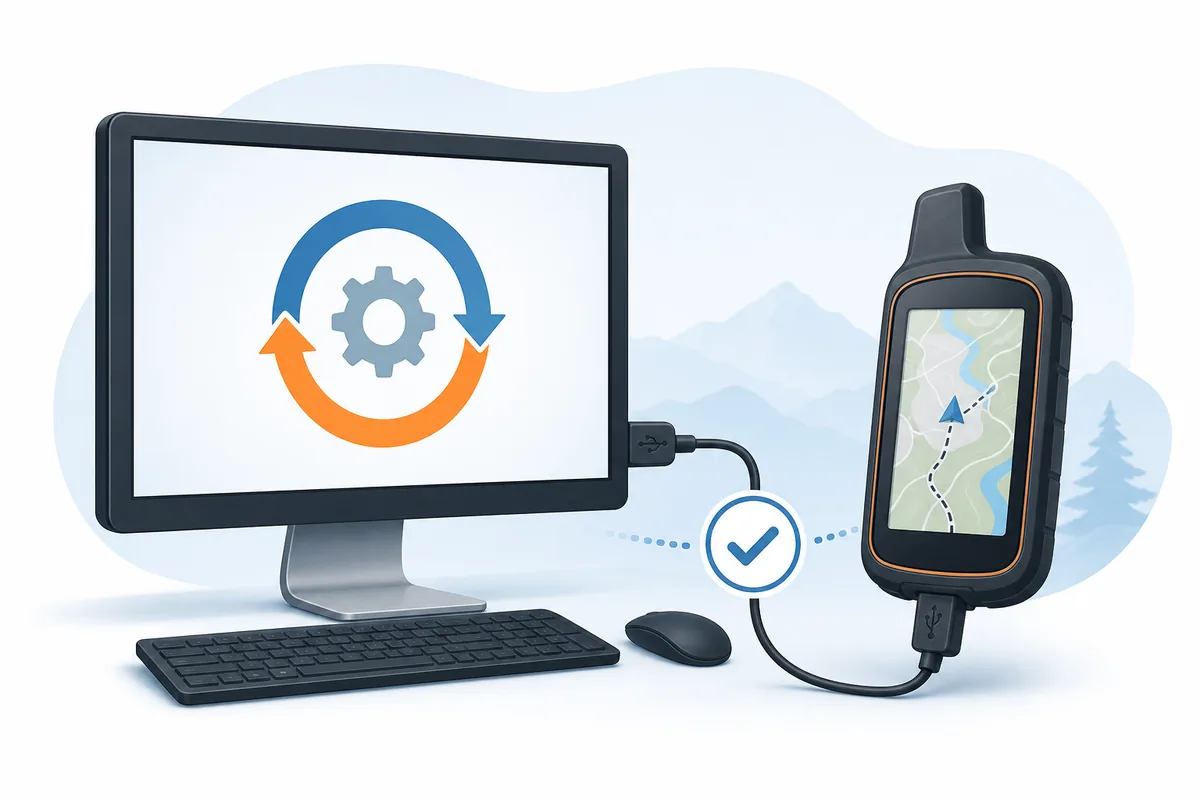
- Read the model label and confirm that it says Nuvi 2595 or a clearly documented regional variant.
- Record the current map name, map version and device software version before starting.
- Note whether the device is registered to the Garmin account you intend to use.
- Remove a memory card only when the device instructions or Express specifically ask you to; do not format it as a first step.
Prepare the computer for a Nuvi 2595 update
Map work is larger and slower than downloading the Express application. Use the current Express build supported by the computer, connect the computer to power and prevent sleep. Garmin's general Express guidance recommends allowing substantial free computer storage for map operations; the exact requirement shown in Express depends on the selected coverage and the device path.
| Check | Why it matters | Safe action |
|---|---|---|
| Operating system | The current desktop app needs a supported Windows or Mac release. | Review the system requirements before a long update. |
| Free storage | Map downloads need temporary workspace as well as final device space. | Keep up to 20 GB available when Express recommends it; follow the exact message on screen. |
| Internet | A large map download can fail when a connection sleeps or changes networks. | Use stable, preferably unmetered internet and keep the computer awake. |
| Power | A battery or device shutdown during writing can interrupt the operation. | Connect the computer to power and charge the Nuvi before starting. |
| Account | Map entitlement and registration can be tied to the device and account. | Sign in only when Express asks, using the account that owns the device. |
Connect the Nuvi 2595 to Garmin Express
Use a known data-capable USB cable and a direct computer port. A cable can charge a Nuvi while its data lines are damaged or absent, so a charging icon is not proof that Express can read the device. Avoid an unpowered hub during the first connection and wait for Windows or macOS to finish identifying the hardware.
Open Garmin Express before connecting when the application is already installed. Then wake the Nuvi, attach the cable and choose Add a Device if Express does not show it automatically. Give the scan time to complete; repeatedly unplugging the device can create a second problem while the first scan is still running.
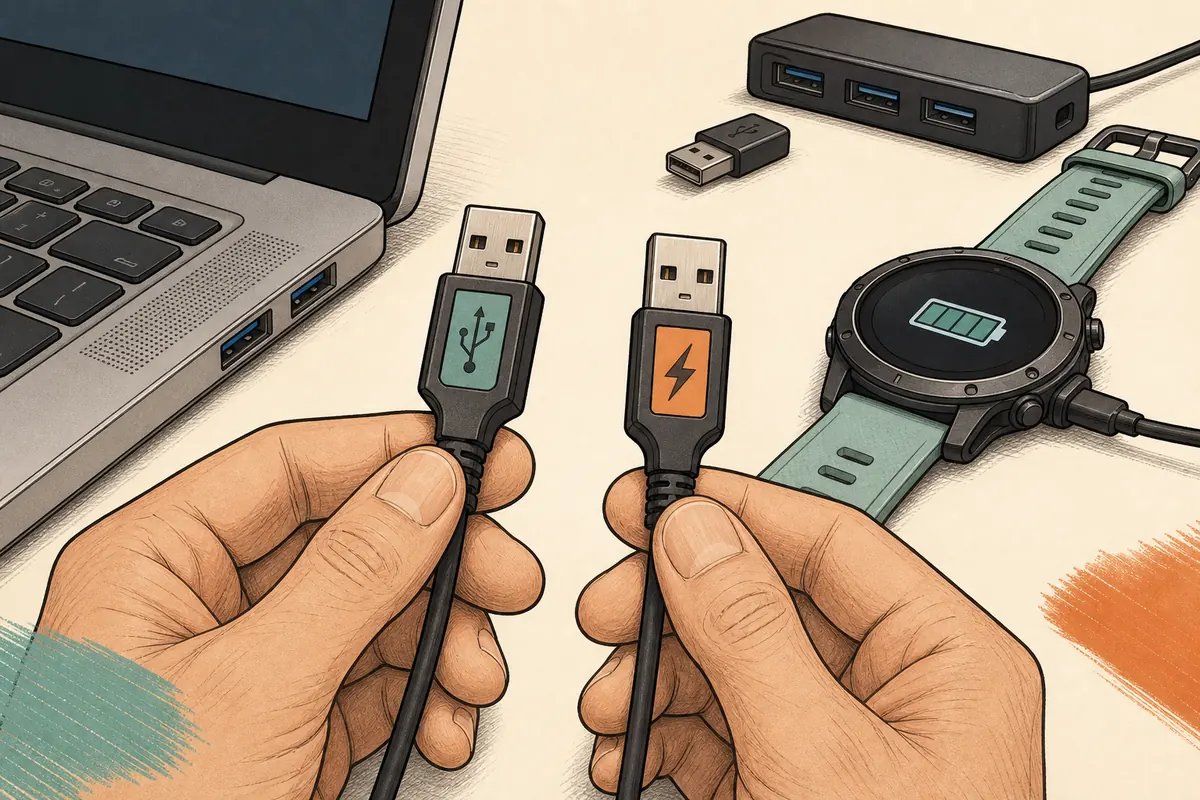
- Wake the Nuvi and leave it on its normal connection screen.
- Connect directly to the computer with a data-capable cable.
- Wait for the operating system to finish its device notification before clicking through Express.
- Select Add a Device and read the model shown by Express.
- Try one other direct port and one known data cable if the first scan fails.
How to update a Garmin Nuvi 2595 with Express
Once Express identifies the Nuvi 2595, read the exact update cards it presents. You may see a map, device software, traffic or other service. The labels, coverage, entitlement and storage message attached to that screen are more reliable than a generic web page that promises a universal Nuvi download.
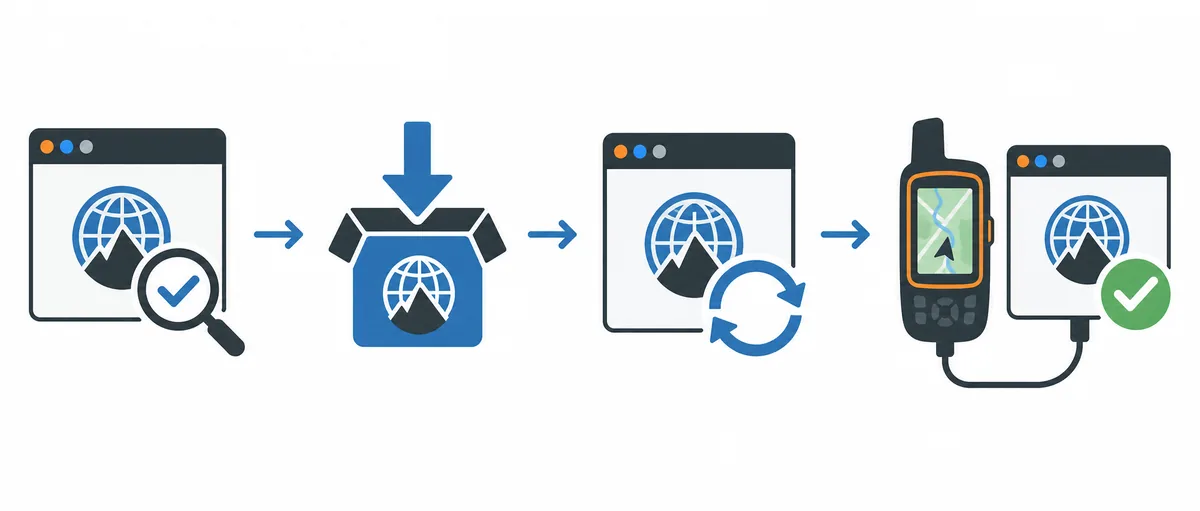
- 1
Open Garmin Express
Launch the installed desktop application on a supported Windows or Mac computer. If Express will not open, solve that application problem before connecting the Nuvi.
- 2
Add the Nuvi 2595
Wake the device, connect it by USB and select Add a Device when prompted. Confirm that the model displayed by Express matches the label you recorded.
- 3
Read the available update
Let Express finish its check. Review the map region, device-software note, account or entitlement message and any storage requirement before accepting anything.
- 4
Choose the intended task
Select the map or device-software update that Express offers for this unit. Do not choose a different model, region or loose file to force an update.
- 5
Keep the path uninterrupted
Leave the computer powered and online, prevent sleep and keep the USB cable connected during both downloading and writing. A percentage that pauses briefly is not automatically a failure.
- 6
Wait for the completion state
Only disconnect after Express reports that installation is complete or the device is ready. If Express asks for a restart, follow that instruction before checking the map.
Nuvi 2595 map updates and device software are different
Users often call every Garmin change a map update, but Express can show different services. A map package changes navigation coverage. Device software can change the operating behavior of the unit. Registration, traffic data or an accessory message may be separate again. Keep the task boundary clear so a missing map offer is not mistaken for a broken installer.
| What you see | What it usually means | What to check |
|---|---|---|
| Map update | A navigation map package is available for the connected unit. | Check region, entitlement, storage and the map name before accepting. |
| Device software | The Nuvi's system software has a supported update. | Read the release note or warning and keep power and USB stable. |
| No update | Express has no eligible service for this device at this time. | Confirm the model, account and registration; do not force a mirror file. |
| Purchase or activation | The offer needs a product purchase, activation or different account. | Review coverage and terms before paying or changing accounts. |
| Space warning | The computer, device or card lacks working space. | Free safe space and use only the storage choice Express documents. |
What to do when the Nuvi 2595 update stops
A stalled percentage, missing device or “not enough space” message does not identify one universal fault. Note the exact text, whether the computer is still using the network and whether the Nuvi shows charging or activity. Change one variable at a time so you can tell whether the problem belongs to Express, the USB path, storage or the device itself.
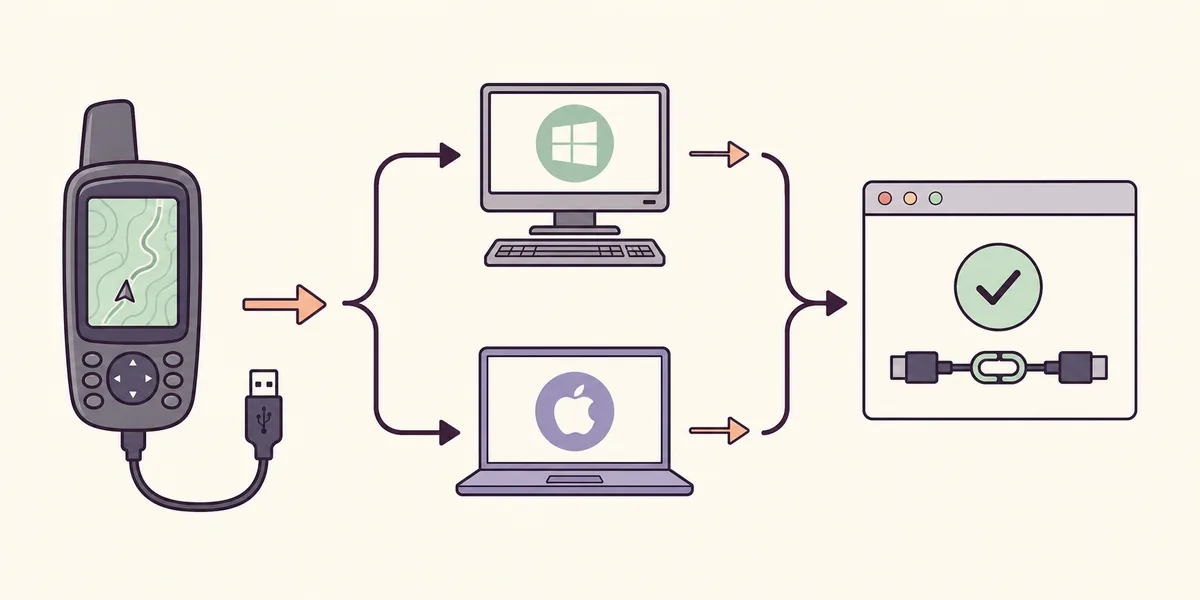
Nuvi not found
Try a direct port and known data cable, restart the device and read the operating-system notification before reopening Express.
Check device detectionNot enough space
Check computer workspace and the storage choice shown by Express. Do not delete device files blindly or format a card as a first response.
Review storage troubleshootingPreparing or paused
Look for network, disk or device activity, keep the device connected and allow a large operation time before one controlled retry.
Fix a Preparing updateExpress reports an error
Record the exact error and separate an application update failure from a map or device write before changing the installer.
Open update error guideVerify that the Nuvi 2595 update completed
Use two checkpoints: Garmin Express must report a finished or up-to-date state, and the Nuvi must start normally after the operation. Do not rely only on a browser download, a disappearing progress bar or the fact that the computer stopped making noise. The device write can continue after the download has finished.
Open the device's map information or system-information screen when available and compare it with the value you recorded before the update. If the screen is unchanged, the offer may have been for another service, may have failed before writing or may not have included a new map for that unit.
- Express reports completion, success or an up-to-date state for the connected Nuvi.
- The Nuvi restarts normally and reaches its regular navigation screen.
- The map or system-information screen shows the expected change when the device exposes it.
- A short route or map view loads without a missing-map warning.
Garmin Nuvi 2595 update FAQ
Can Garmin Express update a Nuvi 2595?
Connect the exact Nuvi 2595 and let Garmin Express identify it. The application will show only the maps or device services that are eligible for that unit, account and region; the model name alone cannot guarantee a current update.
Where is the Garmin Nuvi 2595 update Express download?
This guide does not mirror an installer or map. Use the official Garmin Express Windows or Mac download page to install the desktop application, then return here and let Express check the connected Nuvi. Avoid third-party EXE, firmware or map files.
Are Nuvi 2595 map updates free?
Express is a free desktop application, but map entitlement depends on the device, account, region and product terms. Express may show an included update, a purchase or no eligible map; read the offer for your connected unit.