
Prepare the handheld, map and computer
Before opening Garmin Express, confirm that the map offer or purchase record supports the exact handheld model. Storage, regions and card support vary by model. Garmin's outdoor-handheld instructions describe the purchased-map workflow.
Use a supported Windows 10+ or macOS 13+ computer with Garmin Express, a USB port, stable internet and enough free space. Garmin's installer page lists up to 20 GB of computer space; this does not mean every map is free or compatible.
Keep the computer awake and connected to power during a large download. If the map may need removable storage, insert a model-compatible microSD card before connecting the handheld.

- The map offer supports the exact handheld model.
- The purchasing Garmin account is available, and the device is charged.
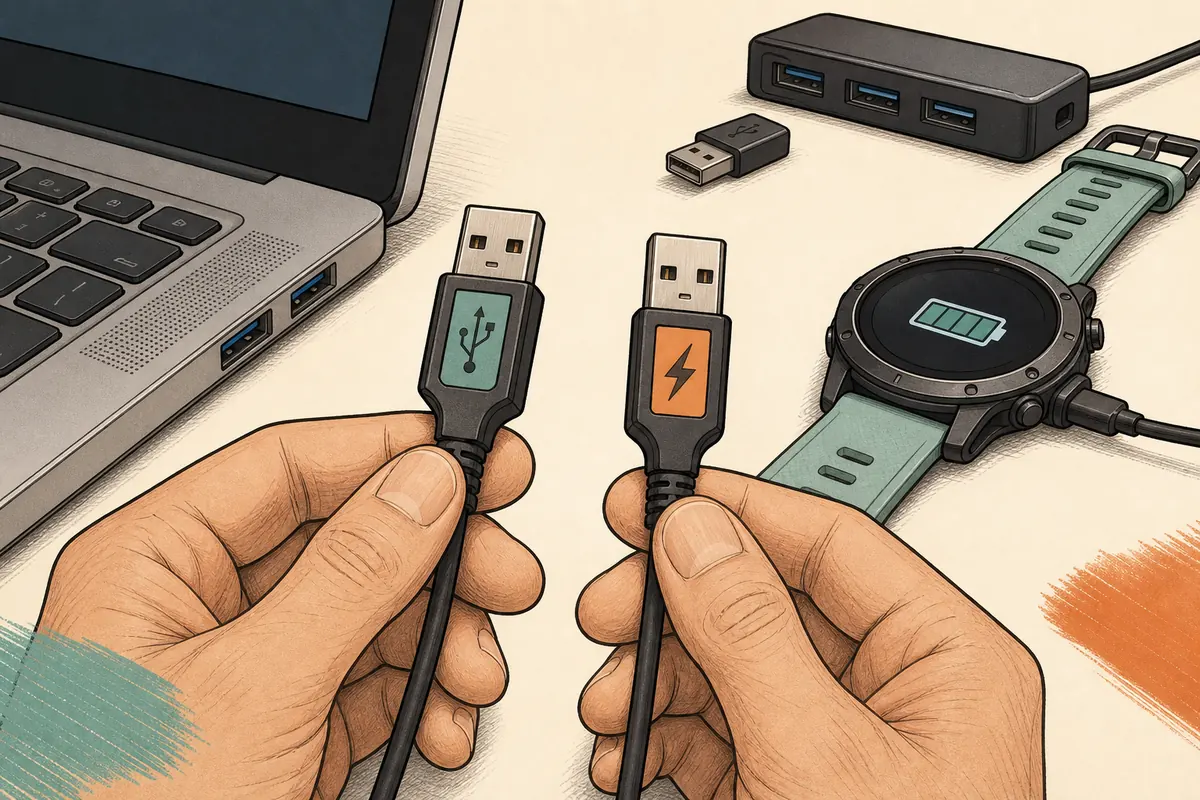
- A data-capable USB cable, direct port and stable internet are ready.
- The computer has free space; a supported microSD card is inserted if needed.
Express shows packages and destinations after it identifies the device. A generic download page cannot replace that compatibility check.
Garmin handheld map transfer: step by step
Labels vary by Express release and device family. For a purchased map, Garmin's instructions use Tools & Content, Purchased and the download icon. If an option is missing, verify the account, device and map offer instead of guessing.
Keep the handheld connected through the device-write phase. A computer download finishing does not mean the map is installed.
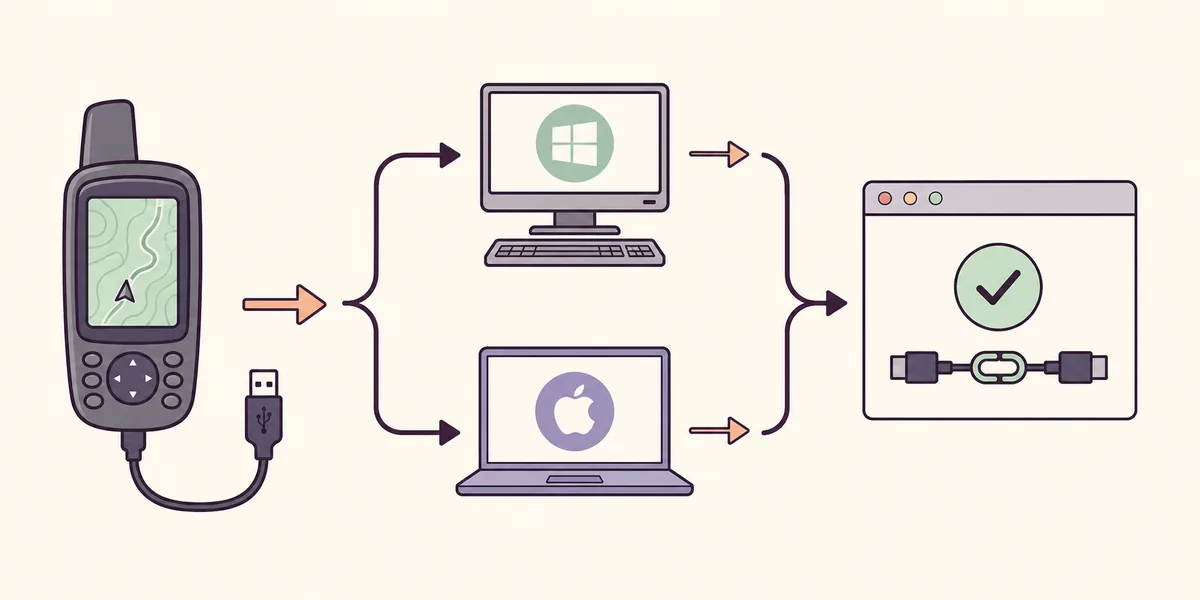
- 1
Connect the handheld
Wake the device and connect it directly with a data-capable USB cable. Wait for its normal USB mode.
- 2
Select the device
Open Express and choose the product. If it is absent, use Add a Device and complete the prompts first.
- 3
Open Tools & Content
Choose Purchased for a Garmin purchase, or select the map offer shown for this device.
- 4
Check the account
If the map is missing, sign in to the purchasing account and refresh the list. Confirm the model before another purchase.
- 5
Choose a destination
Select device memory if the map fits. Choose supported Removable Storage when the model or Express requires a card.
- 6
Install and wait
Accept the terms, select Continue and keep the cable connected until Express reports completion.
Choose internal storage or a microSD card
Storage is model-specific. Some handhelds accept a map internally; others offer Removable Storage for a compatible card. Garmin's Montana guidance shows a storage chart before applying changes.
Check the map requirements and the exact model's card limits. A physically fitting card may still be unsupported, full or too small.
| Destination | Use it when | Check before starting |
|---|---|---|
| Device / My Maps | The map fits the handheld and the model allows internal installation | Free internal storage, model compatibility and the selected region |
| Removable Storage / microSD | The map is too large for internal memory or Garmin recommends a card | Supported card size, correct insertion and enough free space |
| Computer | The product offers a computer copy for BaseCamp or another documented desktop use | The model and map license explicitly support computer installation |
| No destination shown | The device, account or map offer is not ready | Re-add the device, sign in to the purchasing account and check official support |
- Use Express's storage chart instead of estimating from a file name.
- Leave room for temporary files as well as the map.
- Insert a supported card before connecting; disconnect only after completion.
If Express shows a price or activation prompt, confirm the region and account before accepting it.
A map is not a GPX route or a loose file
A purchased map is licensed content for a compatible device. A GPX file contains a route, track or waypoint, while a custom map uses a separate device-specific workflow.
For routes or tracks, use the GPX guide; for an existing map update, use the map update guide. Do not rename one file type to imitate another.
Purchased map
Use Express's device-specific map and storage options.
Review map updatesGPX route or track
Use the service or desktop app that supports the device.
Open the GPX guideCustom map
Follow Garmin's separate compatibility and folder instructions.
Read Garmin custom-map guidanceDevice not found
Check USB, power and detection before changing map files.
Check detection stepsFix common handheld map-transfer problems
Locate the failed stage first: detection, account, map availability, storage, download or device writing. Check that layer before reinstalling Express or copying files.
Labels vary by model. Use these checks as a starting point and confirm the device when a message names a specific map family or card.
| Symptom | Likely cause | First safe action |
|---|---|---|
| Handheld never appears | Cable, port, power or USB mode | Try a known data cable and direct port, then use the device-detection guide |
| Purchased map is absent | Wrong account, stale purchase list or incompatible model | Sign in to the purchasing account, refresh and verify compatibility |
| Only Device is shown, no card | Card missing, full or unsupported | Insert a supported card, check limits and reconnect the handheld |
| Download stops or restarts | Unstable network, sleep or temporary disk space | Use a stable connection, keep the computer awake and free temporary space |
| Map will not fit | Internal storage is insufficient | Select compatible Removable Storage or install only the supported region |
| Express says complete but map is missing | Device write or safe-eject step was interrupted | Reconnect, let Express re-check the device and wait for its completion message |
- Do not unplug during download, verification or device writing.
- Avoid patched installers or disabling security software globally.
- Keep the exact error text and model for Garmin Support.
Large maps can take hours. Check network and device activity before closing Express during a write.
Verify the map reached the handheld
The computer download is only one stage. Keep the handheld connected until Express reports that the map was written, then use the model's safe-disconnect process.
After restart, check the map information or navigation view for the expected region. If it is missing, reconnect once and let Express check again before repurchasing or copying files.
- Express reports that installation or map management is complete.
- The handheld restarts normally and shows the expected map region.
- A map view loads without a missing-map warning.
- The device can be safely disconnected with no write-in-progress message.
For a paid map, retain the purchasing account and exact device model for support.
FAQ about sending maps with Garmin Express
Can Garmin Express send a map to an outdoor handheld?
Yes, when Garmin lists the map and handheld as compatible. Connect the device, select it in Express and use the Tools & Content or map-management options shown for that model.
Where is the Purchased menu in Garmin Express?
Select the connected handheld, open Tools & Content and choose Purchased. If the map is missing, sign in with the account used for purchase and refresh the list.
Do I need a microSD card for a Garmin handheld map?
Only if the map exceeds internal capacity or the model requires removable storage. Check the map requirements and the handheld's supported card limit before inserting one.
Can I send a GPX route with this map method?
No. GPX is route, track or waypoint data. Use the supported Garmin Connect, Explore, BaseCamp or model-specific route workflow instead of the licensed-map menu.
Why is my purchased map missing in Garmin Express?
Verify the exact device, the purchasing account, the purchase region and the map's compatibility. Refresh purchases or remove and re-add the device through official Garmin steps before trying anything else.
How long does sending a map to a handheld take?
It can take several hours. Map size, internet speed, temporary computer storage and device write speed all affect the time, so keep the computer powered and awake.