
Can Garmin Express add music to every Garmin device?
No. How to add music to Garmin Express is really a compatibility question first. Garmin Express is desktop software, and music support depends on the exact watch or device, its available storage, its software and the provider workflow that Garmin supports. A device that can sync activities is not automatically a device that can store or play music.
If your model is music-capable, the safest path is to prepare ordinary local audio files, install the current desktop application from Garmin, connect the device with a data-capable USB cable and follow the music option shown for that model. The page below focuses on that decision sequence so you do not spend time reinstalling Express when the real limit is the device or file source.
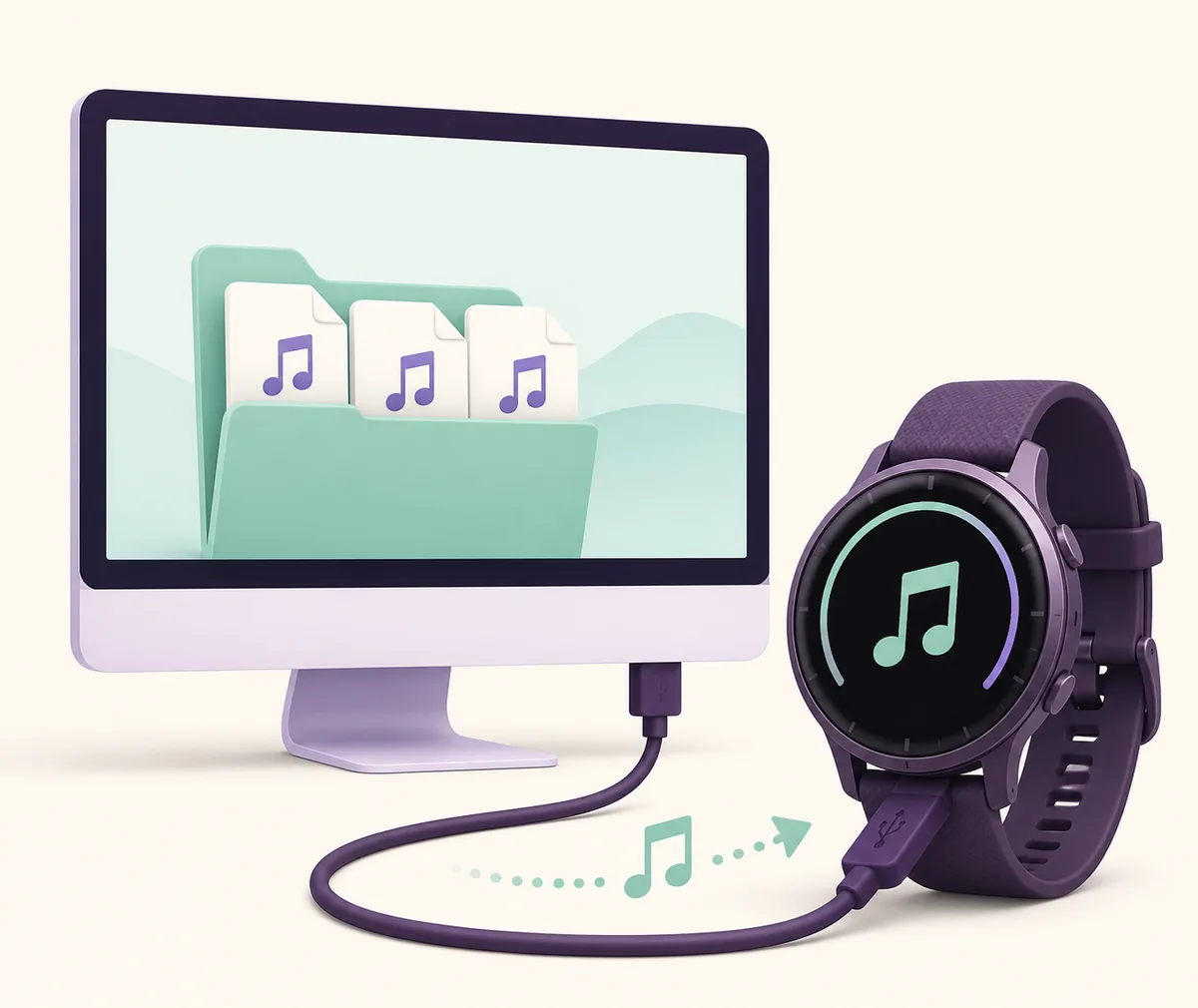
Check the device, computer and file source first
Before opening Garmin Express, identify the exact model and read its music or media instructions. Product families can contain different storage and provider capabilities, so a general statement such as “Garmin supports music” is not enough. If the manual does not describe local music transfer, do not assume that a hidden setting or a third-party driver will add it.
You also need a supported Windows or Mac computer, enough device and computer storage, a stable USB data connection and local files you are allowed to use. The current Express installer is linked from the site’s existing Windows and Mac download pages; the new page does not host or repackage an EXE or DMG.
| Check | What to confirm | Why it matters |
|---|---|---|
| Device model | The model documentation describes music storage or a supported provider | Activity sync alone does not prove music support |
| Computer | A supported Windows or Mac installation with current Express | Garmin Express is desktop software, not an iPhone transfer tool |
| USB cable | A cable that carries data, not only power | A charging-only cable can leave the device invisible |
| Music source | Local, accessible files in a device-supported format | Protected app downloads may not be transferable files |
| Storage | Enough free space on the computer and device | A partial transfer can look like a missing music library |
How to add supported music with Garmin Express
The exact labels vary by model, but the order is consistent: verify support, prepare the source, connect the device, select the music workflow and wait for completion. Do not disconnect just because the files have finished downloading to the computer; the device-writing stage may still be running.
Use the current application on a supported computer. If you need the installer, use the existing Windows download page or Mac download page, then return here after Express is installed.
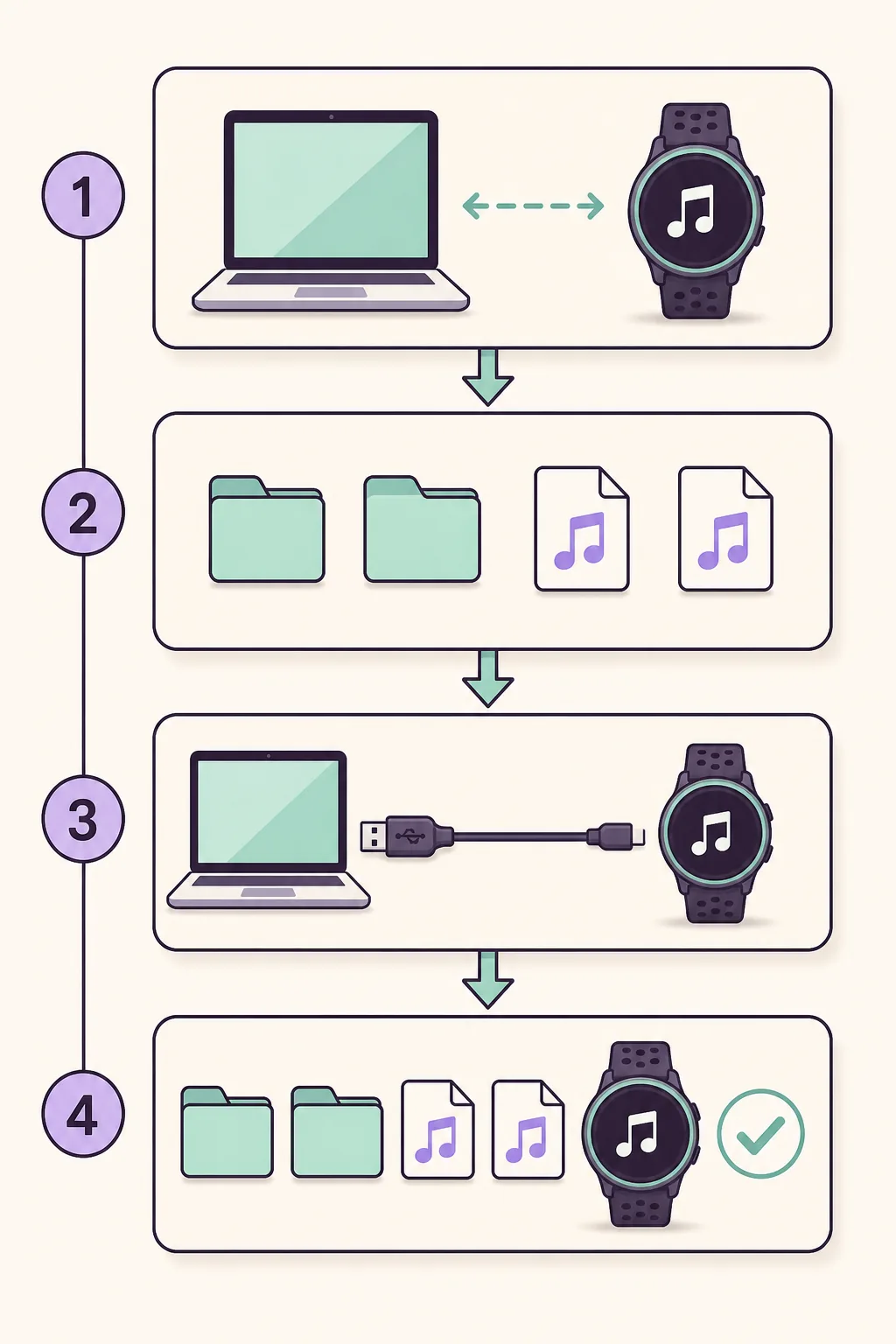
- 1
Confirm music support
Check the exact Garmin model manual or official support instructions. Confirm that local music transfer or the named provider is available for that device.
- 2
Prepare the local files
Put the files you legitimately own or are allowed to transfer in an easy-to-find folder. Keep the source files available until the device confirms the transfer.
- 3
Connect with a data-capable cable
Open Garmin Express, connect the powered device directly to the computer and avoid hubs or adapters while diagnosing a first transfer. Allow the device to be recognized before choosing a music action.
- 4
Choose the model-specific music action
Use the music, media or provider option shown by Express for your device. Do not select a random map or update action as a substitute for a music workflow.
- 5
Wait, verify and safely disconnect
Leave the computer awake and the cable connected until Express reports completion. Open the device’s music area and verify that the expected files or playlists are visible before disconnecting.
Why Apple Music downloads may not be transferable
A subscription download inside Apple Music is not necessarily an ordinary local audio file. It can be protected for playback within Apple’s application, which means Garmin Express cannot treat it like a file that you can browse, copy and place on a device. Trying to rename it, move its cache or use an unofficial converter does not create a supported transfer path.
For a device that supports local music, use files and provider flows that Garmin identifies as compatible. The official Garmin Support music guidance is the right place to confirm the current model-specific options. Keep the page’s wording conservative: a working file on your computer still needs to be supported by the device.
| Source or situation | What to expect | Safer next step |
|---|---|---|
| Ordinary local audio file | May be usable when its format and the device are supported | Check the model instructions and test one small file first |
| Apple Music subscription download | Often protected for playback in Apple Music rather than exposed as a transferable file | Use the supported provider workflow for the Garmin model |
| Unsupported format or damaged file | The file may be skipped or fail during transfer | Use a clean, supported source file instead of a random converter |
| Full device storage | The transfer may stop before the library is complete | Remove unneeded content only after backing up what you need |
This guide does not recommend DRM removal, cracked Garmin builds, unofficial map packages or download managers. Those routes can break the device workflow and make support harder.
Music does not appear after the transfer
When music is missing, check one layer at a time instead of immediately reinstalling Garmin Express. Start with recognition: does the computer see the device, and does Express show the correct model? Next check the cable, file source, storage and transfer completion. This order separates a connection problem from a compatibility or file-protection problem.
If Express cannot see the device at all, use the site’s focused device detection guide. If the app itself fails to open or update, use the broader Garmin Express troubleshooting guide before changing files or drivers.
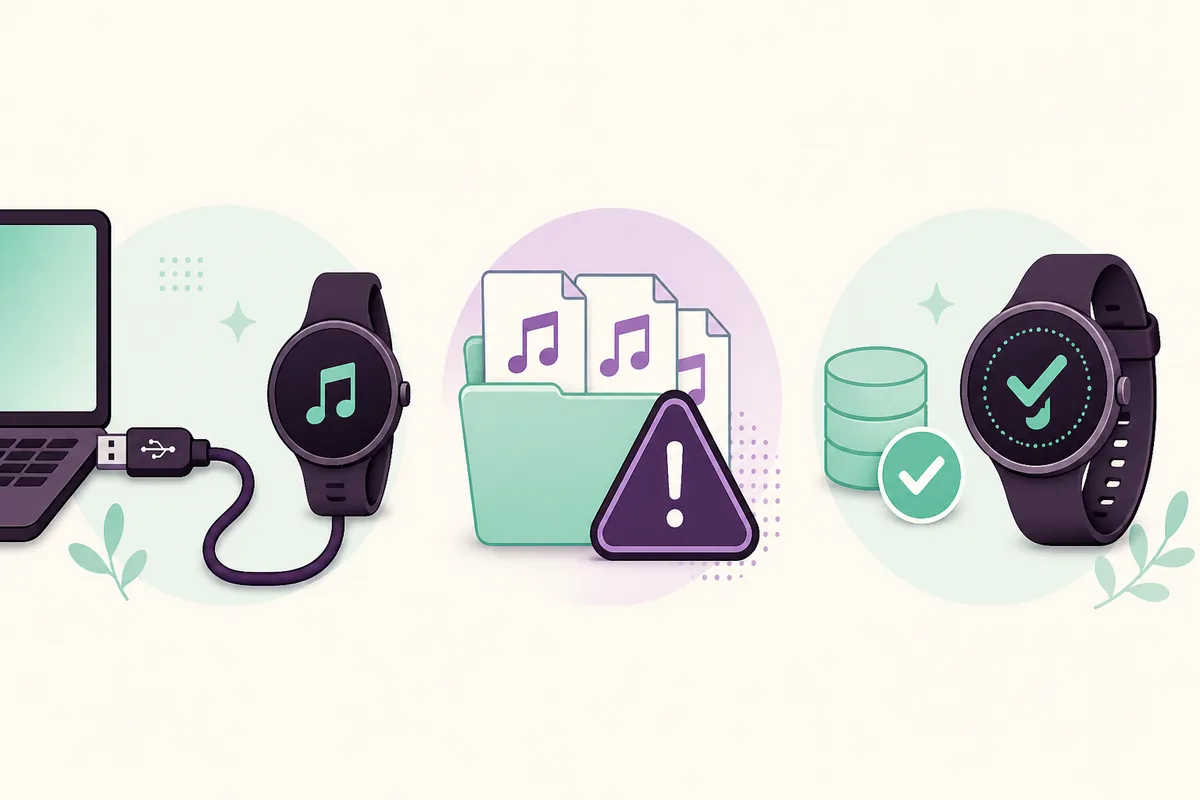
| Symptom | Likely layer | First safe check |
|---|---|---|
| Device never appears | USB cable, port, device mode or app recognition | Use a known data cable and direct port, then reopen Express |
| Music option is missing | Model or provider is not supported | Read the exact device manual and confirm the model |
| Some files are skipped | Format, protection or damaged source file | Test one known local file and keep protected downloads out |
| Transfer stops part way | Storage, sleep, cable or network interruption | Keep both devices powered, free space and retry one small batch |
| Files transfer but do not play | Device library refresh or provider limitation | Restart the device and follow its music-library instructions |
When Garmin Express is not the right music route
Garmin Express is the computer-based maintenance tool. Garmin Connect and model-specific provider workflows may handle mobile activity sync or supported streaming services, while Express may be required for a USB transfer or another desktop task. The right choice depends on the device instructions, not on the word “Garmin” in the app name.
If you are using an iPhone or iPad, do not search for a fake Garmin Express mobile installer. Review the site’s Garmin Express for iOS guide and use the official Garmin Connect route when it matches your task. If a desktop task is required, install Express on a supported Windows or Mac computer.
Use Garmin Express
For compatible desktop and USB workflows that the device manual assigns to Express.
Review installationCheck Garmin Connect
For mobile activity, account or supported provider tasks that belong in Garmin’s mobile ecosystem.
Compare the appsFAQ about adding music to Garmin Express
Can every Garmin device receive music through Garmin Express?
No. Support depends on the exact model, storage and provider workflow. A device that syncs activities is not automatically a music device.
What music files can I add to Garmin Express?
Use ordinary local files in a format supported by the device. Check the model manual before building a large library, and do not treat protected app downloads as normal files.
Can I transfer Apple Music downloads with Garmin Express?
Usually not when the download is protected for playback inside Apple Music. Use the provider workflow supported by your Garmin model instead of trying to bypass protection.
Does Garmin Express music transfer work on Mac?
A Mac can work when the model supports the desktop workflow. Install the current Garmin Express Mac version, connect with a data-capable cable and follow the model instructions.
Why does music not appear after I use Garmin Express?
Check model support, device recognition, the USB data path, file protection or format, available storage and whether Express finished writing to the device.
Do I need Garmin Express on an iPhone to add music?
No. Express is desktop software. Some mobile and provider workflows use Garmin Connect, while other device maintenance tasks still require Windows or Mac.